
Hardware & Peripheral Troubleshooting
Printer Prints Blank Pages but Ink Is Full? 10 Fixes That Work
The paper feeds, the motor whirs, the ink gauge says full, and a perfectly white sheet slides out. Here is how to find what is really going wrong.
There's a special kind of frustration reserved for a printer that does everything right except print. You press the button. The rollers grab a sheet. The carriage slides back and forth, or the drum spins up, and the whole machine hums along as if it were working hard. Then out comes a page as white as the day it was made. Meanwhile the ink gauge on your screen cheerfully insists every cartridge is nearly full.
Nothing about that makes sense, which is exactly why it feels so maddening. But blank pages from a healthy-looking printer are one of the most common printer complaints, and they have a short, well-known list of causes. Some are embarrassingly simple, like a strip of protective tape still sitting on a brand-new cartridge. Others take a little more patience, like a printhead that's dried out after a few weeks of sitting idle.
This guide walks through those causes in a sensible order: quick checks first, then settings, then the ink or toner itself, then the deeper mechanical stuff. The very first step, printing a page straight from the printer's own menu, splits the problem in half and saves you a lot of guessing. If your printer connects over Wi-Fi and you suspect the network side, our guide to setting up a home Wi-Fi network for connected devices is a good companion read, and the permission-and-driver approach we used for the webcam black screen fix applies here too.

A printer can print blank pages while showing full ink because ink gauges are estimates, not proof that ink reaches the paper. First print a test page from the printer's own control panel. If that page is fine, the problem is in the document, driver, or connection. If it's blank, suspect leftover protective tape, an empty or unrecognised cartridge, or a clogged printhead, and run a nozzle check and one cleaning cycle.
- Step zero: split the problem in half
- Fix 1: The document itself is blank
- Fix 2: The wrong printer or driver is selected
- Fix 3: Tape, caps and seals left on cartridges
- Fix 4: Why a "full" cartridge can be empty
- Fix 5: A clogged printhead
- Fix 6: Laser printer causes
- Fix 7: A stuck print queue
- Fix 8: Print settings and paper
- Fix 9: Connection and firmware
- Fix 10: When the printer is actually failing
- Symptom-to-fix cheat sheet
- Habits that keep printers healthy
- Frequently asked questions
Step Zero: Split the Problem in Half
Before touching a single setting on your computer, do this one thing. Use the printer's own screen or buttons to print a built-in report. Nearly every printer has one, usually called a test page, self-test, configuration page, or nozzle check pattern. The exact menu name varies by brand, so look through the Setup, Maintenance, or Tools menu, or check the manual for your model.
The reason this works is that a self-test page comes entirely from the printer itself. It doesn't rely on your computer, your driver, your Wi-Fi, or your document. That makes it a clean experiment:
- If the self-test prints properly, the printer's hardware, ink, and toner are working. The problem lives somewhere between your computer and the printer: the document, the driver, the print queue, or the connection. Focus on Fixes 1, 2, 7, 8, and 9.
- If the self-test is blank or faint, the fault is inside the printer. Focus on Fixes 3, 4, 5, 6, and 10.
This single test can save you an hour of clicking through settings that were never the issue. If your printer has no screen and no obvious way to trigger a report, hold the power or resume button for a few seconds. Many models print a status page that way, though it's worth confirming in the manual before you try it.
Fix 1: The Document Itself Is Blank
It sounds silly, but it's more common than people admit. What you see on screen isn't always what gets sent to the printer. A page can look fine in a preview and still print blank, and several ordinary situations cause this.
White text on a white background is one. If a web page or slide uses a dark theme, the text may be white and only visible against a dark background. Print it without backgrounds and the text becomes white ink on white paper, meaning nothing at all. Images that haven't finished loading can print blank for the same kind of reason, and so can PDF files with unusual embedded fonts.
A quick test settles this: open a plain text file in Notepad or TextEdit, type a few words, and print that. If the plain page prints and your original document doesn't, the printer is fine and the source document is the culprit. Try printing your document from a different program too. If a PDF prints blank from your browser, open it in a dedicated PDF reader and print again. In some PDF readers there's an option to print the page as an image, and switching it on often fixes stubborn font problems.
Also check that you haven't selected a page range beyond what the document contains. Asking for pages 2 to 3 of a one-page document produces exactly what you'd expect: blank output.
Fix 2: The Wrong Printer or Driver Is Selected
Computers remember every printer they've ever met. Over time, that list can grow to include old models, duplicate entries for the same printer, network copies, and virtual printers that save to a file instead of printing. If the wrong one is selected, the job may vanish, print elsewhere, or come out blank.
Open the print dialog and look at the printer name carefully. If you see two entries for your printer, such as one with a "Copy 1" tag, one may be attached to an outdated connection. Print a test page from each. The good one will work.
Drivers that have gone bad
A driver is the translator between your computer and the printer. When it's corrupted or generic, printing can fail in strange ways, including sending blank pages. It's especially likely after a major operating system update, or when the computer picked a basic, generic driver instead of the manufacturer's own.
On Windows, open Settings, go to Bluetooth & devices, then Printers & scanners. Select your printer and remove it. Then download the current driver for your exact model from the manufacturer's support page rather than relying on whatever Windows picks, install it, and add the printer again. On a Mac, open System Settings, go to Printers & Scanners, remove the printer with the minus button, and add it again with the plus button. Choosing the manufacturer's driver, where offered, is often better than the generic option.
Fix 3: Tape, Caps and Seals Left on Cartridges
Now we move inside the printer, and this fix is the funniest and the most frequently overlooked. Nearly every new cartridge ships with some kind of protection: a plastic cap over the nozzles, a strip of tape over ink openings or electrical contacts, or a sealing strip on a toner cartridge. All of it is meant to come off before installation. Some of it is bright orange or blue so you'll notice it. Some is clear and easy to miss.
If you recently replaced a cartridge and the blank pages started right after, take it out and look closely. Check the bottom of an inkjet cartridge where the nozzles sit and the copper-coloured contact strip. Neither should be covered. Check for a small vent hole on top of some cartridges, which should also be uncovered, since a sealed vent can stop ink from flowing. For a toner cartridge, look for a pull tab or sealing strip, often on one end, that needs to be removed by pulling it straight out.
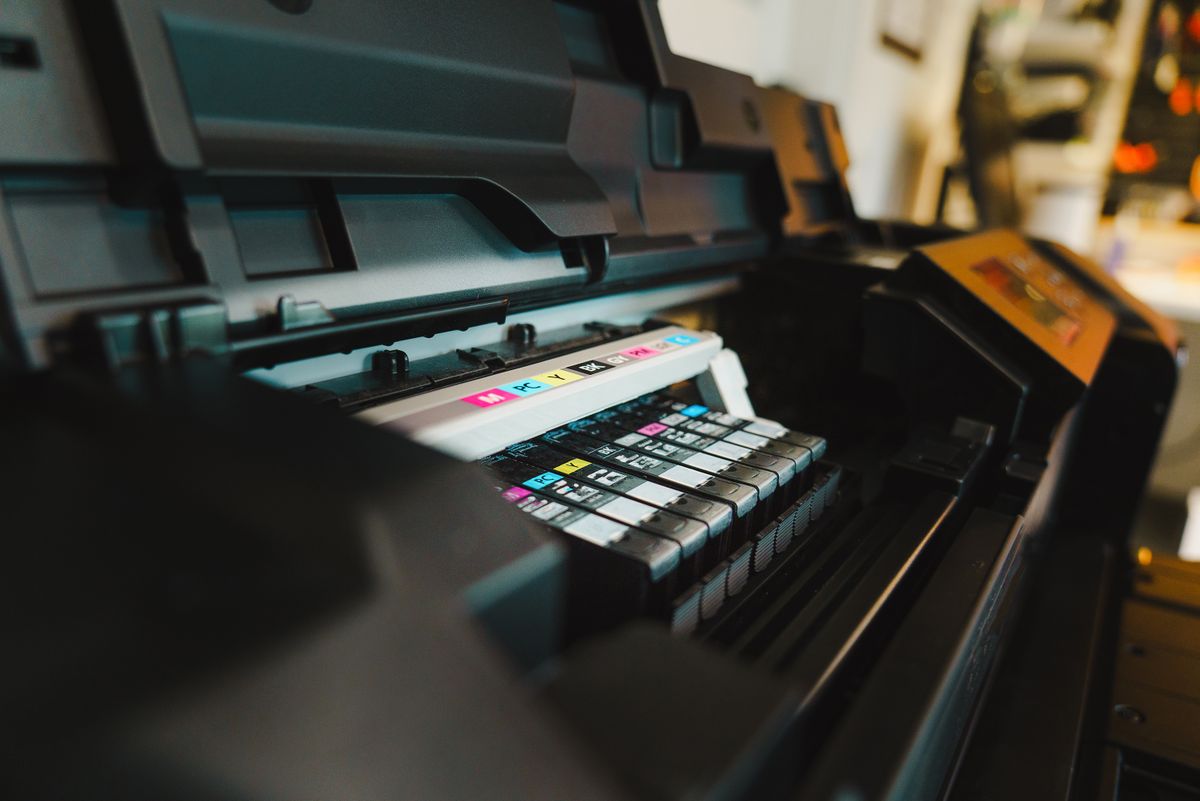
Once the cartridge is uncovered, reseat it firmly until it clicks. A cartridge that's slightly out of position can look installed while failing to make contact or feed ink. If you use a printer with separate colour tanks, remove and reinsert each one. This also clears minor contact problems that the printer might report as a vague error, or not report at all.
Fix 4: Why a "Full" Cartridge Can Actually Be Empty
Here's a fact that surprises many people: the ink levels shown on your computer are frequently estimates. Many printers don't measure the liquid directly. They count how many drops they've fired and how many pages they've printed, then subtract that from a starting assumption. If the count drifts, or the cartridge wasn't filled the way the printer expects, the gauge can say "full" while the tank is empty.
This is especially likely in a few situations. A cartridge that has been moved between printers may carry the wrong count. A refilled cartridge, or one from a third-party supplier, may report whatever its chip says regardless of the real contents. A cartridge that sat unused for a long time may have dried out while still showing a healthy level.
There's another wrinkle. If you're printing black text and the black cartridge is empty, you'll get blank pages even though the colour cartridges are full. On some printers with a single tri-colour cartridge, one empty colour channel can cause odd results as well. The reverse can also happen, where a printer refuses to print anything until every cartridge is recognised and non-empty, even when you only want black.
How to test it
The cleanest test is to swap in a known-good cartridge, ideally a brand-new genuine one, and print the self-test again. If that fixes it, the old cartridge was the problem regardless of what the gauge said. Failing that, look at the nozzle check page. If one colour block is missing entirely, that colour is empty or blocked. If everything is missing, the cause is more general, perhaps a clog or a recognition problem.
Pay attention to any message about cartridges that "cannot be recognised" or are "incompatible." Some printers lock out cartridges whose chips they don't accept, and they can respond by printing nothing rather than something faded. If you use third-party ink, that's a possible cause worth ruling out with a genuine cartridge.
Fix 5: A Clogged Printhead
This is the classic cause on inkjet printers, and it deserves real attention. An inkjet prints by firing microscopic drops of liquid ink through hundreds of tiny nozzles. If the printer sits unused, the ink in those nozzles slowly dries and forms a plug. The result is a printer that feeds paper, moves normally, and lays down nothing at all, or leaves only streaks and gaps.
The classic warning sign is that the problem got worse gradually. First you saw thin white lines through images. Then a colour disappeared. Eventually pages came out fully blank. It's particularly common when a printer has been idle for a few weeks, or when it's switched off at the wall rather than with its own power button, since the printer needs its own shutdown routine to cap the printhead and keep it moist.
Run a nozzle check first
Use the printer's maintenance menu, or the utility that came with the driver, to print a nozzle check pattern. It prints a set of lines or blocks for each colour. A healthy pattern shows solid, unbroken lines. Gaps or missing sections show which nozzles are blocked.
Use the cleaning cycle sparingly
Next, run the printer's built-in head cleaning cycle from the same menu. It pushes ink through the nozzles to flush out dried material. Then print the nozzle check again to see if things improved. Here's the important part: every cleaning cycle uses a noticeable amount of ink, and it can also fill the printer's waste ink pad. Run one cycle, check the result, and only repeat if the pattern is getting better. If two or three cycles produce no improvement, stop. Cycling endlessly wastes ink without solving anything.
If the printhead is part of the cartridge
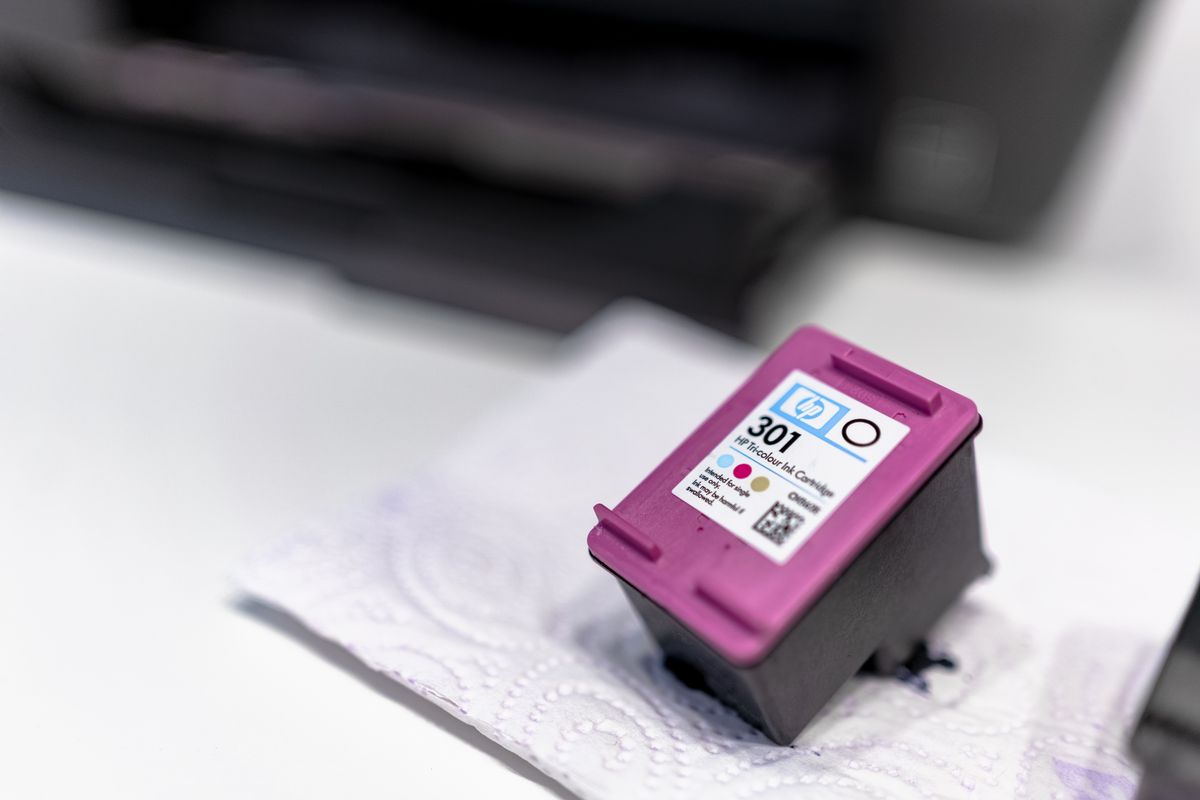
Some printers have the printhead built into each cartridge. In that case, you can carefully remove the cartridge and gently wipe the nozzle plate with a lint-free cloth lightly dampened with distilled water, wiping in a single direction, then let it dry before reinserting. Follow your manufacturer's own cleaning guidance, since methods differ between models. Don't use alcohol or harsh solvents, and don't scrape the nozzles. Where the printhead is built into the printer itself, resist the urge to take it apart. That's the moment to rely on the manufacturer's maintenance routines or a service technician.
Fix 6: Laser Printer Causes
Laser printers use dry toner rather than liquid ink, so they can't clog in the same way. Blank pages on a laser printer usually have their own set of causes, and it helps to keep them separate.
The first is the same sealing strip mentioned earlier. New toner cartridges nearly always have a sealing tab that must be pulled out before use. If it's still there, toner can't reach the drum and the page comes out blank. The second is a cartridge or drum unit that isn't seated correctly. Open the cover, remove the cartridge, and reinsert it firmly. The third is an empty or nearly empty toner cartridge, which can be checked by swapping in another. On some models, you can also gently rock a cartridge side to side to redistribute toner, though you should follow your manufacturer's advice, since methods vary and toner is messy if it leaks.
If none of that helps, the fault may lie with the imaging drum, the transfer roller, or the high-voltage contacts inside the printer that move toner onto the paper. These are wear items or electrical parts, and inspecting them goes beyond a simple home fix. Look at the drum surface for obvious damage, but don't touch it with your fingers, and consider professional service if the printer is valuable. Laser printers also contain a hot fuser, so always switch off and let the printer cool before opening it up.
Fix 7: A Stuck Print Queue
Sometimes the printer and the ink are perfectly fine and the print queue is at fault. A job that got stuck earlier can jam everything behind it, and a corrupted job can send garbled or empty data to the printer that results in blank pages.
On Windows, open Settings, then Bluetooth & devices, then Printers & scanners, choose your printer, and open the print queue. Cancel every job in it. If jobs refuse to cancel, restart the Print Spooler service: press Windows + R, type services.msc, find Print Spooler in the list, right-click it, and choose Restart. On a Mac, open the printer's queue from Printers & Scanners, delete pending jobs, and if the printer appears paused, resume it.
Then restart the printer itself. Power it off with its own button, wait about half a minute, and switch it back on. Send a fresh test page. This is a simple reset, and it resolves a surprising number of cases where a printer seems to be in a confused state.
Fix 8: Print Settings and Paper
Certain settings can interact badly with what you're printing. Open the printer's preferences and review a few options that are easy to overlook.
- Paper type. If the setting says "transparency" or "glossy photo" while plain paper is loaded, the printer may behave unusually. Match the setting to the paper.
- Quality mode. Draft or economy modes use little ink. On a partly clogged printhead, that light output can look blank. Try a standard or normal quality setting.
- Colour or greyscale. Printing in greyscale or black only can use only the black cartridge, so an empty black tank shows up immediately.
- Borderless and scaling. An extreme scaling value, or a document set to a much larger paper size than you've loaded, can push content off the printable area.
Then look at the paper itself. Make sure you've loaded it the right way up. Many printers print on one side only, and a sheet loaded upside down prints on the wrong face, leaving the visible side blank. Fan the paper stack before loading, since sheets that stick together can feed two at once. Damp or curled paper can misfeed as well. If you're printing on specialty paper, check which side is meant to be printed.
Fix 9: Connection and Firmware
A shaky connection can corrupt a job on its way to the printer. For USB printers, try a different cable and a different port, and plug directly into the computer rather than through a hub. Loose or worn cables cause intermittent trouble that can look like a mysterious blank page. For a wireless printer, check that the printer and computer are on the same network and that the signal at the printer is strong. A weak connection can drop data mid-job, and a router change can leave the printer pointing at an old network without telling you.
Firmware matters too. Printer manufacturers occasionally release updates that fix bugs, including printing problems, and a printer several years behind can misbehave with newer operating systems. Check the manufacturer's support page for your model and look for a firmware update, following their instructions carefully and not interrupting the process once it starts.
If you're printing over Wi-Fi and everything else looks right, test by connecting the printer with a USB cable temporarily. If the USB print works, the network is the weak link, and you'll want to re-add the wireless printer or reset its network settings. The same sort of dropped-connection issue is behind many of the problems we cover in our why do bluetooth headphones keep disconnecting , so it pays to think of the connection as a suspect whenever something works only sometimes.
Fix 10: When the Printer Is Actually Failing
Most blank-page problems come down to something you can fix at home. But it would be dishonest to pretend printers never simply wear out, so here's how to tell.
Suspect a real hardware failure if the self-test page is still blank after you've installed new, genuine cartridges, removed all tape, and run cleaning cycles with no improvement. Other signs include grinding or clicking noises, error messages about the printhead or "service required," and ink leaking where it shouldn't. On inkjets, a printhead can reach the end of its life, and on many consumer models it's built into the printer, not the cartridge. On lasers, a worn drum or a failing fuser can be to blame.
Before deciding anything, look up the cost of repair and compare it to the price of a new printer. For an inexpensive home printer, replacement is often more sensible than repair. For a more expensive office model, a technician may be worth calling. Check your warranty first. A printer only a year or two old may still be covered, and the manufacturer's support team may replace it or repair it at no charge. Keep receipts and note the steps you've already tried, which speeds up any support conversation.
Symptom-to-Fix Cheat Sheet
Use this table once you've noticed how your printer behaves.
| What you see | Most likely cause | First thing to try |
|---|---|---|
| Self-test prints fine, documents print blank | Document, driver or queue problem | Print plain text, clear the queue, reinstall the driver |
| Self-test is blank too | Problem inside the printer | Check tape and cartridges, run a nozzle check |
| Blank right after replacing a cartridge | Tape or cap still on, or poor seating | Remove and inspect, then reseat firmly |
| Streaks, then fading, then blank over time | Clogged printhead | One cleaning cycle, then a nozzle check |
| Only black text is missing | Empty or unrecognised black cartridge | Swap in a known-good black cartridge |
| Laser printer prints white pages | Sealing strip or unseated toner or drum | Remove the cartridge and check the tab |
| Jobs vanish or print blank from one app only | App or PDF font issue | Print from another app or as an image |
| Wireless printing fails, USB works | Network connection | Re-add the printer and check the signal |
| Blank pages plus grinding noises or error codes | Failing hardware | Check warranty and compare repair cost |
Habits That Keep Printers Healthy
Once your pages are back, a few small habits make it far less likely you'll be here again.
- Print something every week or two. A single colour page keeps ink moving through the nozzles and prevents dry plugs on inkjets.
- Turn the printer off with its own power button. That lets it park and cap the printhead properly, which slows drying.
- Use quality cartridges. If you choose third-party or refilled ones, buy from a reputable supplier and keep a genuine cartridge as a test option.
- Inspect every new cartridge before installing. Remove tape, caps and seals, and take a moment to check the contacts.
- Store spare cartridges properly. Keep them sealed, upright and away from heat until needed.
- Keep drivers and firmware reasonably current. Update on a quiet day, not just before a deadline.
- Print a nozzle check now and then. Catching a partial clog early is easier than reviving a fully dried-out head.
- Keep the paper path clean and dry. Store paper flat in a dry place and avoid overloading the tray.
None of these is complicated, and together they address most of the causes above.
A Short Checklist Before You Give Up
- Print a self-test from the printer's own menu.
- Check every cartridge for tape, caps and seals, and reseat them.
- Print a nozzle check and run one cleaning cycle if needed.
- Clear the print queue and restart the printer.
- Reinstall the driver from the manufacturer's site.
- Try a known-good cartridge.
Frequently Asked Questions
Why does my printer print blank pages when the ink is full?
Ink level readings are often estimates, so a "full" gauge doesn't prove ink is reaching the paper. Common causes include a clogged printhead, tape left on a new cartridge, an empty or unrecognised colour cartridge, a corrupted driver, a document that is genuinely blank, or a stuck print job.
How do I know if the problem is the printer or the computer?
Print a self-test or nozzle check page from the printer's own control panel. If it prints correctly, the printer and its ink are working, and the fault is in the document, driver, or connection. If it prints blank, the problem is inside the printer.
How many times can I run a printhead cleaning cycle?
Each cycle uses ink, so run one, print a nozzle check, and repeat only if the pattern is improving. If two or three cycles show no progress, stop and try a different fix, or check your manufacturer's guidance.
Can a laser printer print blank pages too?
Yes. On lasers, blank pages often come from sealing tape left on a new toner cartridge, a cartridge or drum that isn't seated properly, or a worn internal part. Removing and reseating the cartridge, and checking for a pull tab, is a sensible first step.
Can third-party or refilled cartridges cause blank pages?
They can. Some printers reject chips they don't recognise, and poorly filled or poorly sealed cartridges may leak or fail to feed ink. Testing with a genuine or known-good cartridge quickly shows whether the cartridge is the cause.
When should I replace the printer instead of repairing it?
If the printer fails its self-test after new cartridges and several cleaning attempts, and the printhead is built into the printer, the repair quote may approach the price of a new model. Compare the two before deciding, and check whether you're still under warranty.
Final Thoughts
A printer that eats paper and returns it blank is rarely as broken as it seems. The trick is to stop guessing and split the problem in half with a self-test page. From there, the path is short: if the printer prints its own page, look at your document, driver, and queue. If it doesn't, look at the tape, the cartridges, and the printhead, and only after that consider that the machine might be at the end of its life.
Work through the fixes in order and you'll most likely find the cause without spending anything. And once the pages are back, keep printing something small every week or so. It's the cheapest maintenance you'll ever do, and it keeps this particular headache from coming back.
Image credits: photographs from Pexels, used under the Pexels license (free to use). Menu names and maintenance steps vary between printer brands and models; always follow your manufacturer's guidance and switch the printer off and let it cool before opening it. If your printer is under warranty, contact the manufacturer before attempting internal repairs.