
Smart Home Setup Guide for Beginners: A Room-by-Room Plan That Actually Works

The first time I tried to "smarten up" my apartment, I bought a smart plug, a smart bulb, and a video doorbell in the same weekend, from three different brands, on three different apps. None of them talked to each other. My doorbell notifications came fifteen seconds after someone had already walked away, my bulb only worked when a specific app was open, and I genuinely convinced myself that home automation was a scam dressed up in marketing photos of smiling families standing in front of tablets mounted on kitchen walls.
It wasn't a scam. I just had no plan. I bought devices before I understood the system they'd need to live in, and that's the single most common mistake beginners make with smart home and IoT setup. This guide is the plan I wish someone had handed me back then: what to buy first, what protocol actually matters, how to wire your rooms in a sane order, and where the real money-wasting traps are hiding.
- Why a plan beats a shopping cart
- WiFi vs Zigbee vs Z-Wave vs Thread — what they actually mean for you
- Do you even need a hub?
- Building your starter setup on a real budget
- Room-by-room setup order
- Smart security without the paranoia tax
- Automations worth building (and ones to skip)
- Seven setup mistakes that quietly waste money
- Getting your WiFi ready before anything else
- A realistic take on privacy and data
- Frequently asked questions
Why a Plan Beats a Shopping Cart
Every smart home guide tells you to "start small," which is technically true and practically useless advice. Starting small without a plan just means you make small mistakes instead of big ones, and small mistakes still cost money and patience. What actually matters is starting with the right foundation, even if that foundation is just two devices.
Think of your smart home less like a collection of gadgets and more like a small network of coworkers who need to cooperate. A thermostat that can't see your door sensors is just an expensive dial. A camera that can't trigger your lights is just a expensive webcam. The value of a smart home isn't any single device — it's the handoffs between them. That means your first decision shouldn't be "which brand has the prettiest app," it should be "which communication standard will let my devices actually talk to each other five years from now."
WiFi vs Zigbee vs Z-Wave vs Thread: What They Actually Mean for You
This is the part most beginners skip, and it's the part that determines whether your setup grows smoothly or turns into a graveyard of abandoned apps. Every smart device uses one of a handful of wireless protocols to communicate, and each has real tradeoffs.
| Protocol | How it connects | Best for | Watch out for |
|---|---|---|---|
| WiFi | Directly to your router | Cameras, plugs, doorbells, TVs | Can overload cheap routers past 15-20 devices |
| Zigbee | Mesh network via a hub | Bulbs, sensors, switches in large numbers | Needs a hub or a compatible bridge |
| Z-Wave | Mesh network via a hub | Locks, garage door controllers | Devices cost more than Zigbee equivalents |
| Thread | Mesh network, IP-based | Newer sensors and bulbs, Matter devices | Still building out device selection |
Here's the plain-language version. WiFi devices are the easiest to set up because they use the network you already have, but every WiFi device is another gadget competing for bandwidth, and routers genuinely start choking once you cross a couple dozen connected things. Zigbee and Z-Wave solve that by creating their own low-power mesh network that doesn't touch your WiFi at all — each device also acts as a relay for the next one, so the more you add, the stronger the network gets, not weaker. Thread is the newer entrant, designed to work with the Matter standard so that devices from different brands can finally cooperate without proprietary bridges.
If you're setting up from scratch in 2026, look for devices that support Matter. It won't solve every compatibility headache, but it dramatically shrinks the odds that a device you buy today becomes useless when you switch platforms in two years.
Do You Even Need a Hub?
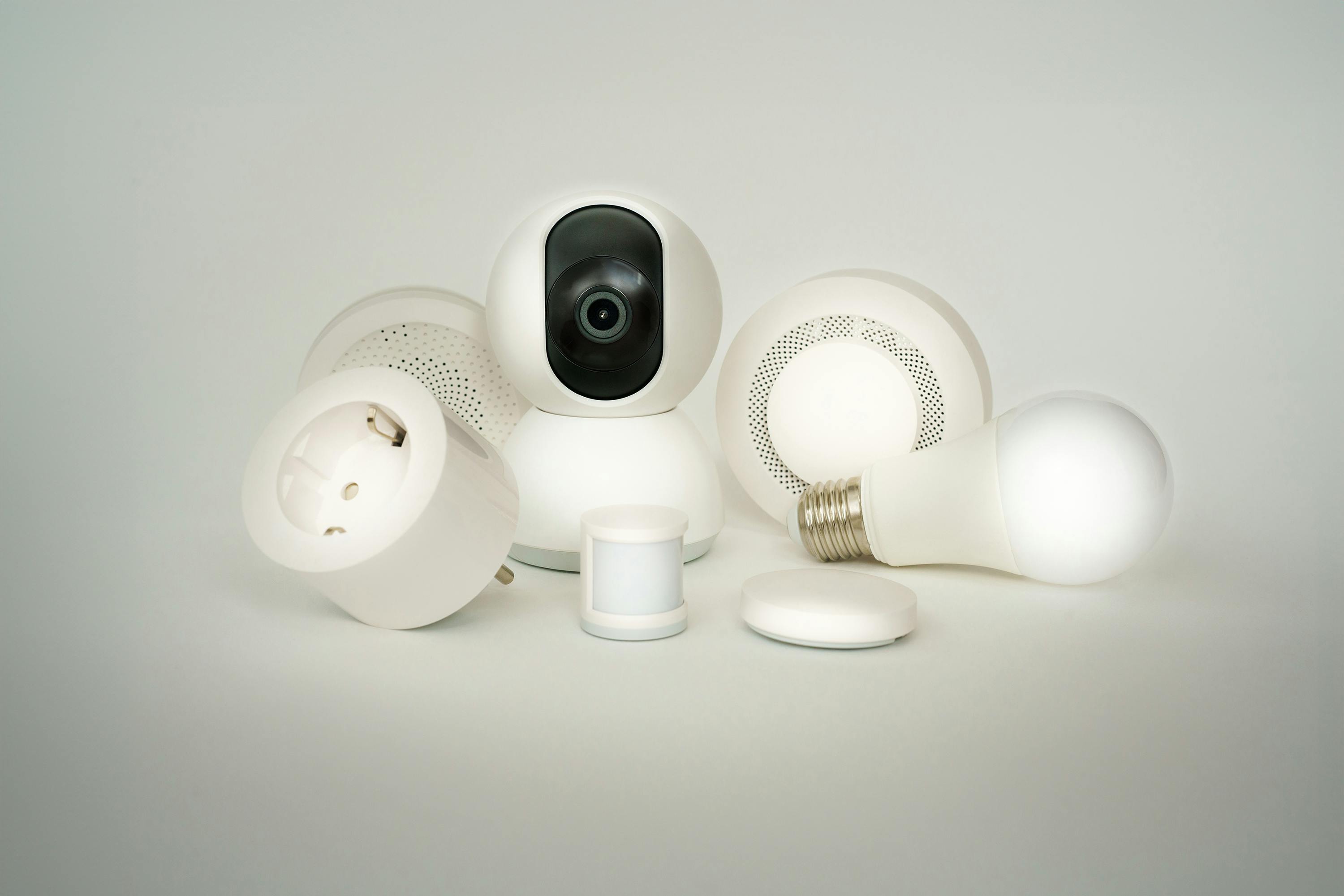
Not necessarily, and this is where a lot of guides oversell the hardware. If you're only planning on WiFi-based plugs, bulbs, and a camera or two, you can run a perfectly functional smart home through your phone's app ecosystem alone — Apple Home, Google Home, or Amazon Alexa all handle basic WiFi device control without any extra box.
A dedicated hub earns its keep once you want any of these three things:
- Zigbee or Z-Wave devices, which physically cannot connect without a hub or bridge
- Automations that keep running even if your internet goes down
- One dashboard that unifies devices from different brands instead of juggling five apps
Building Your Starter Setup on a Real Budget
Skip the twelve-device bundle kits. They look like a deal, but you almost always end up with two or three devices you'll never use sitting in a drawer. Instead, build outward from a single room using this order, which mirrors how actual home automation professionals scope a project.
Step 1: Pick your ecosystem anchor
Decide whether your phone, your smart speaker, or a dedicated hub will be the "brain" you check most often. This isn't permanent, but it determines which app you'll open fifty times over the next month, so pick the one with the interface you find least annoying.
Step 2: Buy one lighting device and one sensor
A single smart bulb or plug, plus one motion or door sensor, is enough to test whether the ecosystem, the app, and your WiFi signal all cooperate before you commit real money. This is the cheapest possible mistake to make, and most beginners skip it entirely.
Step 3: Add a camera or doorbell only after networking is solid
Cameras are bandwidth-hungry and the most common source of "why did my whole WiFi slow down" complaints. Get your router situation sorted first (more on that below), then add video devices.
Step 4: Layer in automation-only devices last
Smart plugs for lamps, leak sensors, smart thermostats — these are the polish, not the foundation. They're also where the real quality-of-life gains show up once the basics are working reliably.

Room-by-Room Setup Order
People usually start in the living room because that's where the TV and the most visible tech lives. It's not the wrong choice, but it's not the highest-value one either. Here's a setup order based on where automation actually saves time and money, not where it looks the coolest.
1. Entryway
A smart lock and a video doorbell solve real problems — package theft anxiety, letting in guests remotely, and knowing who's actually at the door before you open it. This is usually the room with the fastest "why didn't I do this sooner" payoff.
2. Living room
Smart plugs for lamps and a hub or smart speaker placement. This is also the natural place to test voice control, since it's the room you spend the most waking hours in.
3. Kitchen
Smart plugs for coffee makers or slow cookers, plus a leak sensor near the dishwasher and sink if you've ever dealt with a slow leak that went unnoticed for weeks.
4. Bedroom
Smart bulbs with warm-white scheduling and a plug for a fan or white noise machine. Keep cameras out of bedrooms — not a technical limitation, just good judgment.
5. Utility areas (garage, laundry, basement)
Leak sensors, temperature sensors, and a garage door controller. Unglamorous, but these are the devices that actually prevent expensive damage.
Smart Security Without the Paranoia Tax
Security devices are the category most likely to turn a smart home into a subscription trap. A lot of camera brands make the hardware cheap and the cloud storage subscription expensive, which is where they actually make their money. Before buying any camera, check whether it supports local storage on a memory card or a local hub, because that alone can save you a recurring monthly fee for the life of the device.
Door and window sensors are the unsung heroes of smart security. They're inexpensive, they don't require a subscription, and they give you information a camera can't — the moment a specific entry point opens, not just motion somewhere in frame.
Automations Worth Building (and Ones to Skip)
Once your devices are online, the temptation is to automate everything immediately. Resist it. Overbuilt automation is how you end up with lights that turn on at random because two rules quietly contradict each other. Start with a short list of automations that solve an actual annoyance you've had, not a hypothetical one.
Worth building
- Away mode: lock the door, turn off lights, adjust the thermostat, all from one action when your phone leaves a set radius.
- Leak response: if a leak sensor triggers, send an alert and, if you have a smart water shutoff, close the main valve.
- Sunset lighting: lamps that fade on at dusk instead of a fixed clock time, which adjusts naturally through the seasons.
- Morning routine: a gentle light ramp-up paired with a coffee maker plug, timed to an alarm rather than a fixed hour.
Skip, or at least delay
- Voice-controlled everything — most people default back to a physical switch within weeks for high-frequency actions like room lighting.
- Complex multi-condition automations before you've lived with the simple version for a month.
- Anything that requires the cloud to be up for a safety-critical action, like door locks. Local automation matters most exactly where the stakes are highest.
Getting Your WiFi Ready Before Anything Else
This is the step almost every tutorial buries at the bottom, and it should be closer to the top. A weak or overloaded router is the root cause of most "my smart home doesn't work" complaints, not the devices themselves.
A few concrete things to check before adding more than five or six WiFi devices:
- Set up a dedicated guest or IoT network if your router supports it, so a compromised cheap device can't see your laptop or phone.
- Check whether your router supports WiFi 6 or better if you're planning more than fifteen connected devices; older routers weren't designed for that many simultaneous connections.
- Place your router centrally, not in a closet, if signal drop-off has been an issue in far rooms — a mesh WiFi system solves this more reliably than a single stronger router.
- Update router firmware before you start adding devices, not after something breaks.
Seven Setup Mistakes That Quietly Waste Money
- Buying across incompatible ecosystems without checking first. Always confirm a device works with your chosen platform before purchase, not after unboxing.
- Skipping the guest network. Cheap IoT devices are a common entry point for network intrusions; isolating them costs nothing and takes ten minutes.
- Chasing every discount bundle. Bundles are optimized for the seller's margins, not your actual room layout.
- Ignoring firmware update history. A device the manufacturer stopped updating two years ago is a security liability, however cheap it was.
- Over-automating too early. Complex rule chains built before you understand your own habits usually get disabled within a month anyway.
- Forgetting physical backups. Every smart lock should have a physical key backup, every smart switch should still work if someone flips it by hand.
- Paying for subscriptions you could avoid. Check for local-storage or subscription-free tiers before assuming a monthly fee is mandatory.
A Realistic Take on Privacy and Data
Smart home devices collect data by nature — that's how they work. The realistic goal isn't zero data collection, it's informed tradeoffs. A few habits that meaningfully reduce your exposure without requiring you to abandon the convenience entirely:
- Read the privacy section of the setup app before finishing onboarding, specifically looking for what's shared with third parties.
- Prefer devices with a local-control option, even if you also use the cloud app day to day.
- Turn off microphones on devices that don't need voice control, especially in bedrooms.
- Review connected device permissions every few months; unused integrations are a common blind spot.
Frequently Asked Questions
Do I need to replace my router to start a smart home setup?
Not necessarily. If your router is less than three or four years old and you're starting with under ten devices, it's usually fine. Once you cross into Zigbee or Z-Wave territory, or plan more than fifteen WiFi devices, a router upgrade or mesh system starts paying for itself in fewer dropped connections.
What's the cheapest way to start a smart home without a hub?
A WiFi smart plug and a WiFi smart bulb from the same brand, controlled through your phone's native home app, is the lowest-cost functional starting point. It won't scale to dozens of devices gracefully, but it's enough to learn the basics before spending more.
Is Zigbee better than WiFi for smart home devices?
Neither is universally better — they solve different problems. Zigbee is better for scaling up sensors and bulbs without straining your router. WiFi is simpler for devices that need more bandwidth, like cameras, or for someone who only wants a handful of devices total.
Can smart home devices work if the internet goes down?
It depends on the device and the platform. Devices connected through a local hub with local automation rules will typically keep working; devices that route every command through a manufacturer's cloud server generally won't. This is worth checking before you rely on any device for something safety-related, like a door lock.
How many smart devices can a normal home WiFi network handle?
Most consumer routers manage 15 to 25 WiFi devices comfortably before performance starts to degrade, though this varies by router age and how many are actively streaming data, like cameras. Beyond that, moving lighting and sensors onto a Zigbee or Z-Wave mesh network takes the load off your WiFi entirely.
Where to Go From Here
The honest truth about smart home and IoT setup is that the technology has gotten easier every year, but the planning step hasn't gotten any less important. Pick your protocol before you pick your brand. Fix your network before you add your fifth device. Automate the annoyance you actually have, not the one you imagine you might have someday. Do those three things and you'll skip almost every mistake that made my first attempt at this so frustrating.
Start with one room, live with it for two weeks, and only then expand. A smart home that actually gets used beats an elaborate one that gets disabled after a month of false alarms and confusing apps — and at this point, that's really the only metric that matters.