
How to Turn Off Motion Smoothing on Any TV (Every Major Brand)
You unpack a beautiful new TV, put on a movie you've seen a dozen times, and something feels off. The actors move a little too smoothly. The camera glides in a way it never did at the cinema. A big-budget drama suddenly looks like it was shot on a home camcorder, or like a daytime soap opera filmed on a cheap set.
You're not imagining it, and your TV isn't broken. It's doing exactly what it was designed to do. The culprit is a feature called motion smoothing, and nearly every modern TV ships with it switched on.
The good news is that you can turn it off in under a minute once you know what your TV calls it. The bad news is that every brand renamed the same feature, buried it in a different menu, and sometimes saves it separately for each input. That's why so many people search for the fix, find a guide for the wrong brand, and give up.
This guide covers all of it: what motion smoothing actually does, how to confirm it's the thing bothering you, the one-press shortcut that works on many sets, the exact menu names for Samsung, LG, Sony, TCL, Vizio, Hisense and Fire TV, why the setting keeps sneaking back, and the situations where leaving it on is genuinely the better choice. If you'd rather keep a little smoothing and just tame it, there's a section for that too.
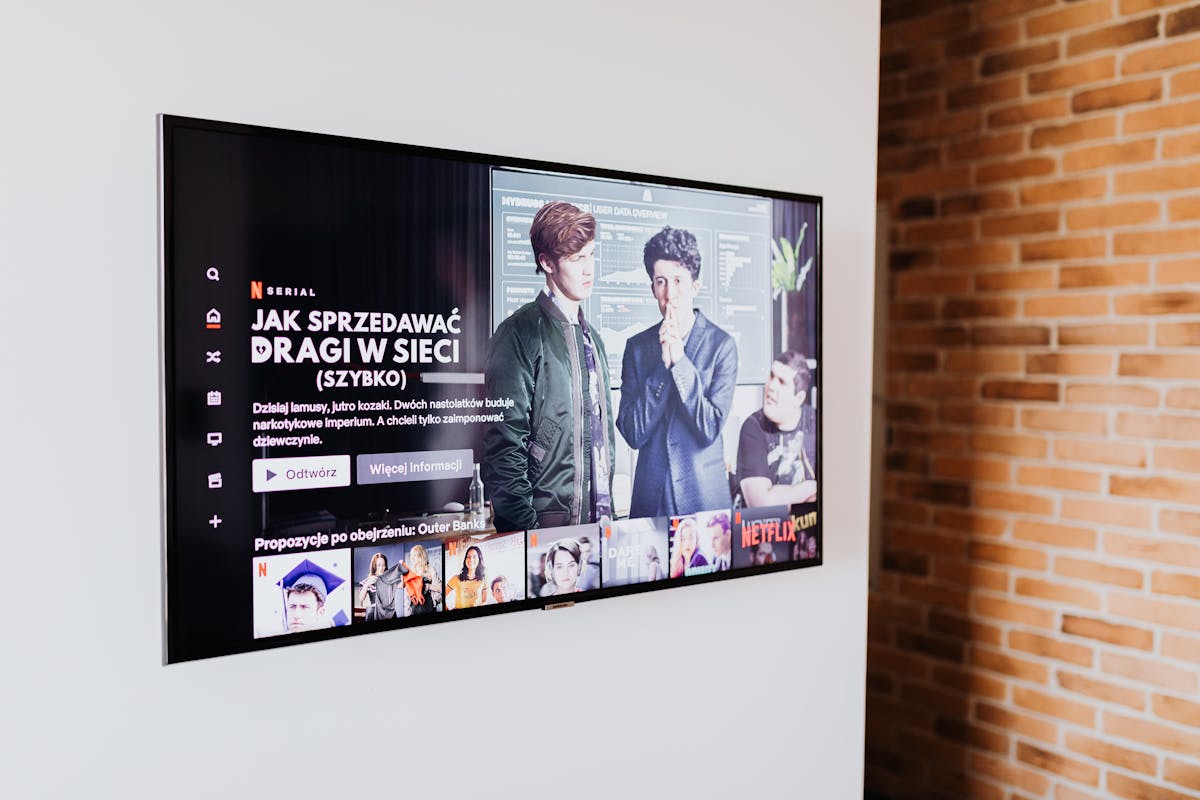
What motion smoothing actually is
Motion smoothing goes by many names, including motion interpolation, frame interpolation and, in the most common nickname, the soap opera effect. The idea behind all of them is the same. Your TV looks at two frames from the picture it receives, guesses what would have appeared between them, and invents extra frames to slot in.
Why would it do that? Because most films are shot at 24 frames per second, while most modern TVs refresh the screen 60 or 120 times per second. Something has to fill the gap. Without processing, the TV can simply repeat frames, which some people find slightly juddery on slow camera pans. With smoothing turned on, the TV creates brand-new in-between frames, so the motion looks fluid and continuous.
On paper, that sounds like an upgrade. In showrooms, it is. A shop floor demo of a bright, fast-moving scene looks impressive with smoothing cranked up, and that's a big reason it's switched on by default. A TV that looks dazzling in the store is easier to sell.
The trouble is what it does to films and scripted shows. Cinema and drama have a look built around 24 frames per second. The slight gaps between frames are part of what gives movies their texture. Add extra frames and you erase it. What you get is the same motion quality you'd expect from live TV, a sports broadcast or a soap opera, which is exactly where the nickname comes from. Many directors and film fans dislike it so much that several filmmakers have publicly campaigned for TVs to ship with it switched off.
Interpolation isn't magic, either. The TV is guessing. When the guess is wrong, you can see it: ghostly halos around a person's head as they move across a busy background, hands that seem to smear, text that wobbles while scrolling, or a strange floating quality on slow pans. These glitches are called artifacts, and they're a second reason to switch the feature off when you're watching movies.
How to tell it's the problem
Before changing anything, it's worth confirming that motion smoothing is what's bothering you, rather than a brightness or sharpness setting. Here's a quick check that takes about two minutes.
- Pick a scene you know well. Choose a movie or drama with a slow camera pan or a person walking across the frame. A slow pan is the best test, because it's where smoothing is most obvious.
- Watch for that "too real" look. Does it feel like the actors are on a set instead of in a story? Does the camera seem to float? Those are the classic signs.
- Look for artifacts. Watch the edges of moving people or objects. A faint halo, shimmer or smear around a moving subject means the TV is inventing frames it shouldn't.
- Toggle the setting and compare. Turn motion smoothing off using the steps later in this guide and replay the same scene. The difference is often immediate. If it looks like a proper film again, you found the cause.
If nothing changes, the problem may lie elsewhere, in sharpness, contrast enhancement or an over-bright picture mode. There's a section on those later.
The fastest fix: Filmmaker Mode
Because every manufacturer hides the setting under a different name, the industry came up with a shortcut. Filmmaker Mode is a picture preset created with the backing of the UHD Alliance, an industry group. The point of it is simple: switch off motion smoothing and other heavy processing in one go, so movies look the way the director intended, no matter what your TV brand calls things.
Filmmaker Mode is available on TVs from a number of major brands, including Samsung, LG, Vizio and Hisense, and some sets can even switch to it automatically when they detect movie content. On many remotes you'll find it as a picture mode in the Picture Mode list. On some TVs it's a dedicated remote button.
Along with turning off motion smoothing, it typically dials back other extras that make pictures look artificial, such as aggressive sharpening and noise reduction. That's why it's often the best single change you can make.
How to use it
- Open your TV's Picture settings and find the list of picture modes (it may be labelled Picture Mode or Picture Style).
- Choose Filmmaker Mode if it's on the list. If you don't see it, check for a dedicated button on your remote.
- Play a movie and see whether the soap opera look has gone.
- Check each input. Picture modes are often saved per HDMI input or per app, so the setting may need repeating for your streaming box, game console or cable box.
If your TV doesn't have Filmmaker Mode, a mode called Movie or Cinema is often a good start, but it doesn't always switch off smoothing, so you may still need to visit the motion settings yourself. That's what the next section is for.
Turn it off, brand by brand
Here's the quick map. Find your brand, then look for the matching name in your Picture or Advanced Picture settings.
| Brand | What it's called | Where to look (typical path) |
|---|---|---|
| Samsung | Auto Motion Plus (newer sets: Picture Clarity Settings) | Settings > Picture > Expert Settings |
| LG | TruMotion | Settings > All Settings > Picture > Advanced Settings > Clarity |
| Sony | Motionflow (plus CineMotion) | Settings > Display & Sound > Picture > Motion |
| TCL (Roku TV) | Action Smoothing | Press the star (*) button during playback > Picture Settings > Advanced Picture Settings |
| Vizio | Smooth Motion Effect (older: Motion Control) | Settings > Picture > Advanced Picture |
| Hisense | Motion Enhancement (also Motion Clearness) | Settings > Picture > Motion Enhancement |
| Amazon Fire TV sets | Motion Smoothing | Settings > Picture > Advanced Options |
Samsung: Auto Motion Plus
Press the Home or Settings button, then go to Settings > Picture > Expert Settings. Find Auto Motion Plus (on newer sets it may be called Picture Clarity Settings) and open it. Set it to Off. If you'd rather keep a little processing, choose Custom, where you can drag the Blur Reduction and Judder Reduction sliders. Setting both to zero has the same effect as Off, and it lets you keep other tweaks.
LG: TruMotion
Press the Settings (gear) button on your remote, open All Settings, then go to Picture > Advanced Settings > Clarity. Set TruMotion to Off. On some older models the option lives under Picture Mode Settings and then Picture Options instead. Some LG sets also offer a milder Cinematic option. It's worth trying if you dislike the fully-off look, but for a first test, choose Off. One useful detail: LG stores this setting per picture mode and per input, so you may need to repeat it if you switch modes.
Sony: Motionflow
Press the Settings button and go to Display & Sound > Picture > Motion (older sets say Picture Settings > Advanced Settings). Open Motionflow and set it to Off. Some guides also suggest choosing Clear on certain models, but for a natural film look, Off is the simplest choice. While you're there, check CineMotion, the film-related setting. If it's set aggressively, try setting it to Off or Auto and see which looks better to you.
TCL (Roku TV): Action Smoothing
TCL's Roku TVs hide this setting in a spot people miss. You have to be playing video first, then press the star (*) button on your remote to bring up the Options menu. Go to Picture Settings > Advanced Picture Settings and find Action Smoothing. Set it to Off. If you open the regular settings menu while nothing is playing, you may not find it at all. TCL sets running Google TV use a different layout, so look for a motion or motion-clarity option under Picture > Advanced instead.
Vizio: Smooth Motion Effect
Press the Menu button, choose Picture, then open Advanced Picture (sometimes labelled More). Find Smooth Motion Effect and switch it to Off. On older Vizio models the same idea appears as Motion Control, or as separate Reduce Judder and Reduce Blur controls. Set those to Off or zero.
Hisense: Motion Enhancement
Go to Settings > Picture and look for Motion Enhancement. Turn it off. Some Hisense models also include a related option called Motion Clearness, so turn that off too. On older models, look for labels like Clear Motion or UltraSMR, which serve a similar purpose.
Amazon Fire TV sets: Motion Smoothing
On TVs with Fire TV built in, go to Settings > Picture > Advanced Options and find Motion Smoothing. Switch it off. This is different from a standalone Fire TV Stick, which just sends video to a TV and doesn't do the smoothing itself, so the setting you need is on the TV, not on the stick.
Other brands
| Brand | Name to look for |
|---|---|
| Panasonic | Intelligent Frame Creation or MotionSmoother |
| Philips | Motion Styles |
| Sharp | AquoMotion |
| Toshiba | Clear Frame or ClearScan |
| JVC | Clear Motion Drive |
| Roku streaming devices | Action Smoothing (when the smoothing is being done by a Roku-powered TV) |
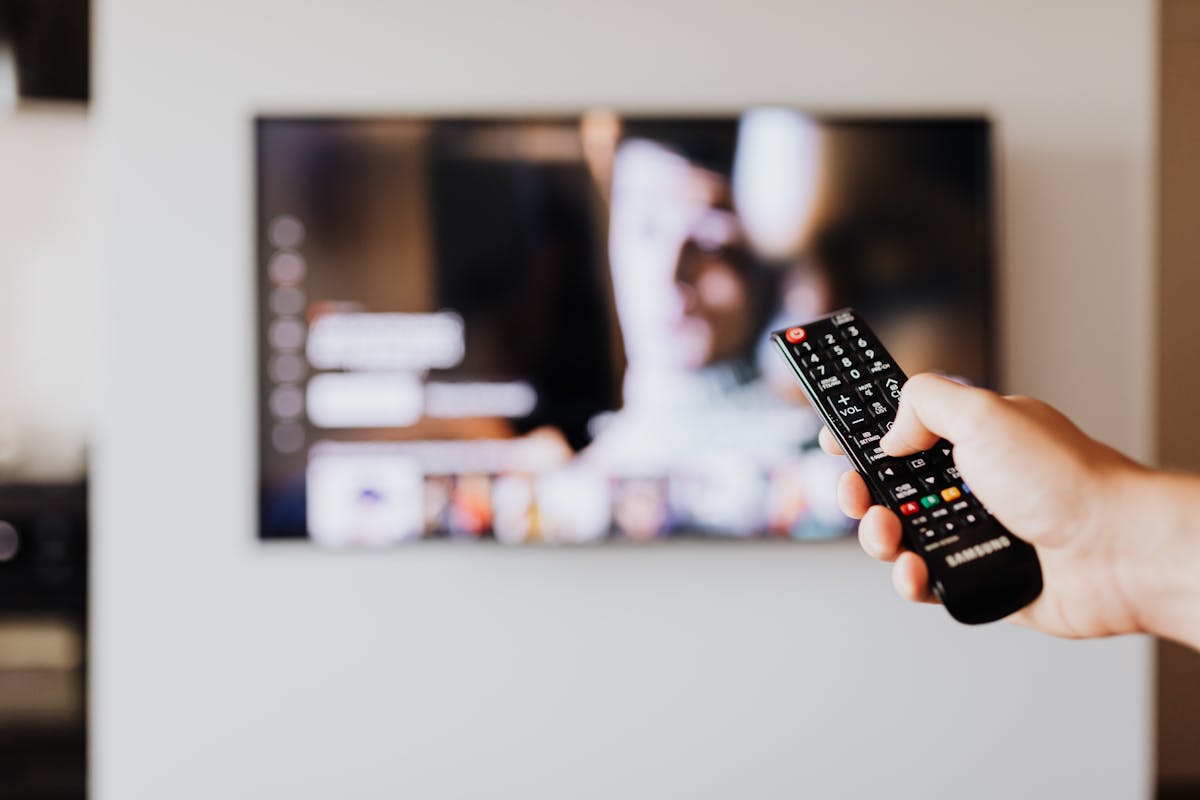
Why the setting keeps coming back
Some people switch smoothing off, enjoy a great movie, and then find the soap opera look back a week later. It's annoying, but there are almost always ordinary reasons behind it.
The setting is saved per picture mode
Most TVs keep separate copies of picture settings for each picture mode, such as Standard, Vivid, Movie and Filmmaker. If you turn smoothing off while you're in Standard, then later switch to Vivid, that mode still has its own settings. The fix is to check each mode you use, or to stick to one mode and set it up properly.
The setting is saved per input
Many TVs also remember picture settings separately for each input. That means HDMI 1, HDMI 2, the built-in apps and the antenna tuner may each carry their own configuration. You might have fixed it for your streaming box and still see smoothing on the games console. Work through each input you use.
A software update reset it
Firmware updates sometimes reset advanced picture options to their defaults, and defaults mean smoothing on. If it worked for months and suddenly stopped, check whether the TV recently updated itself, and reapply your settings.
A factory reset or energy-saving mode changed things
A reset returns everything to factory settings. Eco or power-saving modes can also change picture behavior. If you or someone else in the house used one of these, that's a likely explanation.
The picture mode changes automatically
Some TVs can switch picture modes on their own, for example when they detect a game console or a piece of HDR content. That's convenient when it works, but it can change settings under your feet. Look for an option such as auto game mode or automatic picture mode and see whether it's swapping things around.
| What you notice | Likely reason | What to do |
|---|---|---|
| Fixed on one app, still bad in another | Settings stored per input or per app | Repeat the change on each input and app you use |
| Fine in Movie mode, back in Standard mode | Settings stored per picture mode | Use one mode consistently, or set each one |
| Was fine for months, now it's back | Software update or reset | Reapply the settings; consider noting them down |
| Can't find the option at all | Different name, or the menu only appears during playback | Play a video first, then look under advanced picture settings for "motion" |
| Option is greyed out | Current picture mode locks it | Switch to Movie, Cinema or Filmmaker Mode and try again |
Streaming box settings that help
Here's something that gets overlooked. Sometimes the TV isn't the only device altering your video. If you use a streaming box or stick, one of its own settings can make the smoothing problem better or worse.
The most useful option is frame rate matching. Films are shot at 24 frames per second, and a device that outputs everything at a fixed 60 Hz has to convert that. When a box matches the frame rate of what you're watching, the TV receives film at its native speed, which reduces the awkward conversion in the first place. Look for an option in your streaming device's video or display settings with wording such as "match frame rate", "match content" or "auto-adjust display refresh rate". Apple TV, Roku players and Fire TV devices all offer some version of it, though the exact name and location differ.
Two small things to know. First, when frame-rate matching switches, the screen may go blank for a second, which is normal. Second, some TVs can't display certain rates natively, so the benefit varies from set to set. It's worth turning on and trying for a week.
Stable streaming also matters. If your video buffers or drops in quality, you'll blame the picture settings for what is really a network problem. If that sounds familiar, our smart home Wi-Fi network setup guide explains how to get a steadier home network for all your connected devices.
When motion smoothing is actually useful
It would be too simple to say the feature is always bad. There are situations where a bit of smoothing is genuinely helpful, and it's worth knowing them so you don't switch everything off out of habit.
Live sports
This is the classic exception. Sports are often shot and broadcast at lower frame rates, and fast movements such as a ball in flight or a sprint can look choppy without help. Many people find that a low or medium smoothing setting makes football, cricket, tennis or racing feel clearer. The soap opera look doesn't bother anybody when it's real life being filmed.
Fast panning shots in documentaries and nature footage
Long sweeping pans across a landscape can judder noticeably at 24 frames per second. A small amount of judder reduction can smooth that out without changing the whole look of the picture. Some people like the effect here even if they'd never use it on a drama.
Video games (but not the way you think)
Games are a special case. Extra processing adds delay between your button press and the action on screen, which is the opposite of what you want. That's why most TVs disable smoothing automatically in Game Mode. If you play games and notice lag, check that Game Mode is on and smoothing is off. Don't turn smoothing on for gaming.
Home videos and phone footage
Video you filmed yourself is usually captured at a higher frame rate than a film, so the effect looks less strange. If you're watching family clips on a big screen, a little smoothing usually does no harm.
The rule of thumb: for scripted films and dramas, off. For live sport, a low setting may help. For games, off and in Game Mode. For everything else, trust your eyes.
Can't stand it off? Tune it instead
Some viewers find that switching smoothing completely off makes fast action look stuttery, especially on a large screen, and that's a fair reaction. If that's you, you don't have to choose between the soap opera look and judder. Most TVs let you keep a small amount.
The approach is the same everywhere. Choose the custom or user setting inside the motion menu, and you'll find sliders or levels, usually one for blur reduction and one for judder reduction. Here's a sensible way to tune them:
- Start at zero. Set both sliders to their lowest value and watch a scene with a slow camera pan. Note how much judder bothers you.
- Raise judder reduction a little. Move it up in small steps. Stop as soon as the pan looks acceptable, before the picture starts to look too smooth.
- Leave blur reduction low. This one tends to add more artifacts than it fixes for film, so keep it near zero unless you're watching sport.
- Test with three different scenes. A pan, a dialogue scene, and a busy action shot. A setting that suits one may not suit the others.
- Save it and live with it for a few days. Your eyes adjust. What looks odd on the first evening often looks normal by the fourth.
| Brand | Where the fine controls are | Starting point for movies |
|---|---|---|
| Samsung | Auto Motion Plus set to Custom | Blur Reduction 0, Judder Reduction 0 to 2 |
| LG | TruMotion set to User | De-Judder low, De-Blur 0 |
| Sony | Motionflow set to Custom | Smoothness at the lowest level, Clearness off |
| Others | Look for Custom, User or Level options in the motion menu | Lowest setting that removes obvious judder |
Treat those starting points as suggestions, not rules. Panels differ, rooms differ, and eyes differ, and the best setting is the one that looks right to you.
Other settings that create the same fake look
Sometimes people turn off motion smoothing and the picture still doesn't look right. It could be that other processing features are adding an artificial finish. These are the usual suspects.
Sharpness set too high
Many TVs ship with sharpness turned up well beyond neutral. It creates bright outlines around edges, making faces and objects look harsh and etched. Lowering it usually makes the picture look more natural, not softer.
Noise reduction
Noise reduction smooths out grain and compression artifacts, but on good-quality sources it can also erase fine detail and give skin a waxy, plastic look. Try setting it to low or off for clean sources like Blu-ray discs and high-quality streams.
Vivid or Dynamic picture modes
These modes crank up brightness, contrast and color saturation to shine in a bright showroom. At home in the evening, they can look garish. Movie, Cinema or Filmmaker Mode usually looks calmer and more accurate.
Dynamic contrast and similar enhancers
Features that automatically adjust contrast from scene to scene can make the picture pump or flicker in brightness. Turning them off, or setting them low, often gives a steadier picture.
Color and skin tone boosters
Anything called Live Color, Color Enhancer or something similar can push colors past natural. If skin tones look orange or grass looks neon, dial these back.
Filmmaker Mode tends to reset many of these in one go, which is why it's such a good starting point. If you'd like to fine-tune afterwards, change one thing at a time and give each change a few days before deciding.
Troubleshooting
The setting isn't in my menu
Try switching to Movie or Cinema mode first, since some picture modes hide advanced controls. If you use a TCL Roku TV, remember that the option only appears while video is playing. If you still can't find it, check your TV's support page using the exact model number, which is printed on a sticker on the back and in the settings under About.
The option is greyed out
This usually means the current picture mode or input locks it. Game Mode, for example, often disables motion processing on purpose. Change to a different picture mode and try again.
Everything looks stuttery after I turned it off
That's the judder we talked about. It's most visible on 60 Hz TVs and on slow pans. Use the tuning steps above to add back a small amount of judder reduction, and turn on frame-rate matching on your streaming device.
I turned it off but the picture still looks smooth
Check that you changed the setting on the right input, since settings are often saved per input. Also confirm you're not in a picture mode that re-enables it, and look at any additional motion options in the same menu, such as Motion Clearness on Hisense or CineMotion on Sony.
I see a black screen flash for a second when a movie starts
If you've enabled frame-rate matching on your streaming box, that brief flicker is normal. It's the display switching to a new refresh rate. If you find it annoying, you can turn the feature off, but the trade-off is more conversion in the picture.
Common mistakes
Changing the wrong setting
Brightness, contrast and sharpness are easy to confuse with motion settings. If nothing improves, double-check you've adjusted something with "motion" in the name.
Turning everything off without testing
It's tempting to disable every processing feature at once. Try changing one setting at a time so you know what actually helped.
Judging the picture in a bright room, in the first five minutes
A cinematic picture can look dim or soft at first if you've been used to a brighter, punchier default. Give it a few evenings before deciding. Most people adapt quickly and then can't stand going back.
Forgetting other inputs
You fix the streaming app and forget the games console, the cable box and the built-in tuner. Each input can carry its own settings.
Leaving smoothing on for games
Extra processing adds delay. For gaming, use Game Mode and keep motion processing off.
Assuming a bad picture means a bad TV
Many "my new TV looks terrible" complaints come down to default settings designed for a shop floor, not your living room. A few changes will often transform the picture without any repair or replacement.
Frequently asked questions
What is the soap opera effect on a TV?
It's the overly smooth, hyper-real look that appears when a TV inserts extra frames into film or scripted content. Movies are shot at 24 frames per second, and adding frames makes the motion look like live television or a soap opera. The feature behind it is usually called motion smoothing or motion interpolation.
Is motion smoothing bad for my TV?
No, it doesn't harm the TV. It's just a picture-processing feature. The reasons to turn it off are about how the picture looks: it can make films look artificial and can cause visible artifacts such as halos or smearing around moving objects.
What is Filmmaker Mode and should I use it?
Filmmaker Mode is a picture preset supported by many TVs that switches off motion smoothing and other heavy processing so movies look closer to how they were intended to be seen. For movies and dramas it's usually a great choice. It may look dimmer at first, so give your eyes a few days to adjust.
Should I turn off motion smoothing for sports?
Not necessarily. Live sports are often shot at lower frame rates, and a low or medium level of smoothing can make fast movement look clearer. Many people leave a small amount on for sport and use Filmmaker Mode or a Cinema mode for films.
Does motion smoothing affect gaming?
Yes. Extra processing adds delay between pressing a button and seeing the result. That's why most TVs turn it off automatically in Game Mode. If games feel laggy, confirm Game Mode is on and motion smoothing is off.
Why does my TV keep turning motion smoothing back on?
Picture settings are often saved per picture mode and per input, so a change on one may not carry over to another. Software updates and factory resets can also restore the default, which usually has smoothing on. Check each mode and input you use, and reapply the settings after an update.
The short version
If your new TV makes movies look strangely cheap, the cause is probably a single setting that's been on since day one. Find the motion option for your brand, set it to Off, and check every picture mode and input you use. If you want the fastest route, try Filmmaker Mode first.
Keep a little smoothing for live sport if you enjoy it, use Game Mode for gaming, and give your eyes a few evenings to aSmart home Wi-Fi network setup guidedjust to a more natural picture. Once it's set up, that same TV will feel like a different device, and you'll wonder why it ever looked any other way.
Disclaimer: This article is for general information about consumer TV settings. Menu names, paths and available options vary by brand, model and software version, so consult your TV's manual or the manufacturer's support page for exact steps. Images courtesy of Pexels, free to use under the Pexels license.