
Laptop Touchpad Not Working? 12 Fixes That Actually Work
Updated August 2026 · 11 min read
Table of Contents
- What Causes a Laptop Touchpad to Stop Working
- Fix 1: Check the Touchpad Keyboard Shortcut
- Fix 2: Turn On the Touchpad in Windows Settings
- Fix 3: Update the Touchpad Driver
- Fix 4: Roll Back a Recent Driver Update
- Fix 5: Run the Windows Troubleshooter
- Fix 6: Check the BIOS/UEFI Setting
- Fix 7: Fix Precision Touchpad and Palm-Rejection Conflicts
- Fix 8: Install Pending Windows Updates
- Fix 9: Rule Out Malware Interference
- Fix 10: Use System Restore
- Brand-Specific Fixes (Dell, HP, Lenovo, ASUS, Acer)
- Clean the Touchpad Surface Before Assuming It's Broken
- When the Problem Is Hardware, Not Software
- Windows 10 vs Windows 11 Touchpad Settings
- Using an External Mouse as a Temporary Fix
- When to Take It to a Repair Shop
- Preventive Habits That Avoid Future Touchpad Issues
- Frequently Asked Questions
- Final Thoughts
There's a particular kind of frustration that comes from tapping and swiping at a touchpad that refuses to respond. No cursor movement, no clicks registering, nothing. You reach for the mouse you don't have with you, and suddenly a laptop that was working fine ten minutes ago feels unusable. The good news is that a dead touchpad is one of the most fixable laptop problems out there — in the vast majority of cases, it's a settings issue or a driver hiccup rather than a hardware failure. This guide walks through every fix in the order most likely to solve your problem fastest, starting with the thirty-second checks and working toward the deeper troubleshooting steps.
What Causes a Laptop Touchpad to Stop Working
Before diving into fixes, it helps to understand why touchpads fail in the first place. Touchpads are controlled by a small piece of software called a driver, which translates the physical taps and swipes your finger makes into cursor movement and clicks that Windows understands. When that translation breaks down, the touchpad can appear completely dead even though the physical hardware is fine.
The most frequent culprits, roughly in order of how often they occur, are:
- Accidental keyboard shortcut: Almost every laptop has a dedicated key or key combination that toggles the touchpad on and off, and it's surprisingly easy to hit by accident while typing.
- Driver corruption or an outdated driver: A Windows update, a botched driver install, or simple software rot can leave the touchpad driver unable to communicate properly with the operating system.
- External mouse auto-disable setting: Many laptops are configured to disable the built-in touchpad automatically whenever a USB or Bluetooth mouse is connected, which is useful for some people and confusing for everyone else.
- A recent Windows feature update: Large Windows updates sometimes reset touchpad settings to default or swap a manufacturer's precision driver for a generic Microsoft one that behaves differently.
- BIOS-level disable: On rare occasions the touchpad is disabled at the firmware level, which happens either through user error or a system reset.
- Physical damage or a loose connector: If the laptop has been dropped, had liquid spilled on it, or been recently opened for repair, the ribbon cable connecting the touchpad to the motherboard can become loose or damaged.
Working through the fixes below in order will identify which of these is actually happening on your machine, without needing to guess or take anything apart unnecessarily.
It also helps to notice the exact symptom you're seeing, because different symptoms often point toward different causes. A touchpad that does absolutely nothing — no cursor movement, no clicks, nothing — usually points to a disabled setting or a missing driver. A touchpad that moves the cursor but ignores clicks, or clicks but won't move the cursor smoothly, often points toward a driver conflict or a palm-rejection setting gone wrong rather than a total hardware failure. A touchpad that works intermittently, cutting out for a few seconds at a time, is more likely to be either a loose physical connection or background software interfering with the input service. Keeping this distinction in mind as you go through the fixes below will help you recognize which one is likely to solve your specific case fastest, rather than working through all twelve in strict order every time.
Common Touchpad Symptoms and What They Usually Mean
| Symptom | Likely Cause |
|---|---|
| Touchpad completely unresponsive, no cursor movement at all | Disabled shortcut, missing/uninstalled driver, or BIOS-level disable |
| Cursor moves but clicks don't register | Driver bug, palm rejection setting, or a stuck physical click mechanism |
| Cursor jumps erratically or moves on its own | Dust or debris under the surface, or a sensitivity setting set too high |
| Works for a few minutes then stops | Loose ribbon cable connection, or a background app conflicting with the HID driver |
| Gestures (scroll, zoom) stopped working but basic movement is fine | Precision touchpad gesture settings reset by a recent update |
Fix 1: Check the Touchpad Keyboard Shortcut
This sounds almost too simple, but it resolves a large share of "touchpad not working" cases. Look along your top row of function keys (F1 through F12) for a small icon that looks like a rectangle with a diagonal line through it, or a rectangle with dots — that's the touchpad toggle. Common combinations include:
- Fn + F5 (common on Lenovo and Dell)
- Fn + F7 (common on HP)
- Fn + F9 (common on ASUS and Acer)
- A standalone key near the touchpad itself on some older models
Press the combination once, wait a couple of seconds, and test the touchpad. If nothing happens, try pressing it again in case the first press turned it further off rather than on, then move to the next fix.
Fix 2: Turn On the Touchpad in Windows Settings
If the keyboard shortcut didn't help, check the software setting directly.
- Press the Windows key and type touchpad settings, then hit Enter.
- On Windows 11, go to Bluetooth & devices > Touchpad and confirm the toggle at the top is switched on.
- On Windows 10, go to Devices > Touchpad and check the same toggle.
- If you use an external mouse, look for a setting labeled something like "Leave touchpad on when a mouse is connected" and enable it if you want both input devices active simultaneously.
If the touchpad toggle is greyed out and can't be switched on at all, that's usually a sign the driver itself isn't loaded correctly — which is exactly what the next fix addresses.
Fix 3: Update the Touchpad Driver
Outdated or corrupted drivers are the single most common software cause of touchpad failure. Here's how to refresh the driver through Device Manager:
- Right-click the Start button and choose Device Manager.
- Expand Mice and other pointing devices.
- Right-click your touchpad entry (it may be labeled with your laptop brand, or as "HID-compliant touchpad" or "Precision touchpad").
- Select Update driver, then Search automatically for drivers.
- If Windows says the best driver is already installed, right-click the same entry and choose Uninstall device, then restart the laptop — Windows will typically reinstall the driver automatically on boot.
For a more thorough fix, visit your laptop manufacturer's official support page, search your exact model number, and download the touchpad or "precision touchpad" driver listed specifically for your operating system version rather than relying only on Windows Update.
Fix 4: Roll Back a Recent Driver Update
If the touchpad worked fine until shortly after a Windows update or a driver update, the newer driver might actually be the problem rather than the fix. To roll it back:
- Open Device Manager and expand Mice and other pointing devices as before.
- Right-click the touchpad entry and choose Properties.
- Go to the Driver tab. If the Roll Back Driver button is available, click it and follow the prompts.
- Restart the laptop and test the touchpad again.
If the rollback button is greyed out, Windows doesn't have a previous version stored, and you'll need to manually download an older driver version from the manufacturer's site instead.
Fix 5: Run the Windows Troubleshooter
Windows includes a built-in hardware troubleshooter that can catch configuration issues you might not spot manually.
- Go to Settings > System > Troubleshoot > Other troubleshooters.
- Find Hardware and Devices and click Run (on some Windows 11 versions this is accessed through Settings search instead).
- Let it scan and apply any suggested fixes.
This step rarely solves deep driver issues on its own, but it's a quick, safe pass that occasionally catches something the manual steps miss, and it's worth running before moving to firmware-level checks.
Fix 6: Check the BIOS/UEFI Setting
Some laptops let you disable the internal pointing device at the firmware level, separate from anything Windows controls. If nothing above has worked, it's worth checking:
- Restart your laptop and press the BIOS entry key repeatedly as it boots — commonly F2, F10, F12, Esc, or Del depending on the brand.
- Look through tabs labeled Advanced, Devices, or Onboard Devices Configuration for an entry like "Internal Pointing Device" or "Touchpad."
- Make sure it's set to Enabled.
- Save changes and exit (usually F10), then let the laptop boot normally.
This setting is disabled by default on very few machines, but it's occasionally toggled off unintentionally after a BIOS update or a factory reset, so it's worth the two-minute check.
Fix 7: Fix Precision Touchpad and Palm-Rejection Conflicts
Modern "Precision Touchpad" drivers (the Microsoft standard used on most laptops built after 2017) include palm-rejection technology designed to ignore accidental contact while typing. Occasionally this feature becomes overly aggressive and starts ignoring intentional input too, which can feel identical to a dead touchpad.
- Go to Bluetooth & devices > Touchpad and confirm your device is listed as a "Precision Touchpad" at the top.
- Open the Taps and Scroll & zoom sections and toggle features off, then back on one at a time to reset them.
- If you recently adjusted "touchpad sensitivity" to the lowest setting, move it back to Medium and test again.
Fix 8: Install Pending Windows Updates
Counterintuitively, sometimes the fix for an update-related touchpad problem is a further update, since Microsoft regularly ships patches that address known driver regressions.
- Go to Settings > Windows Update.
- Click Check for updates and install anything pending, including optional driver updates listed separately.
- Restart the laptop fully rather than just letting it sleep, since driver changes often only take effect after a complete reboot.
Fix 9: Rule Out Malware Interference
It's uncommon, but certain malware and rogue background processes can interfere with input device drivers or hijack HID (human interface device) services. If the touchpad issue appeared alongside other odd behavior — sluggish performance, unfamiliar programs, or unexpected pop-ups — run a full scan using Windows Security or a reputable scanner, and check Task Manager > Startup apps for anything unfamiliar that could be consuming input-related resources.
Fix 10: Use System Restore
If the touchpad was working fine until a specific point and none of the fixes above solved it, restoring Windows to a point before the problem started can undo whatever setting or driver change caused it.
- Search for Create a restore point in the Start menu and open it.
- Click System Restore, then choose a restore point dated before the touchpad stopped working.
- Follow the prompts; the laptop will restart automatically once the restore completes.
Note that this only works if System Protection was already turned on before the problem occurred — it won't help if restore points were never being created.
Brand-Specific Fixes (Dell, HP, Lenovo, ASUS, Acer)
While the fixes above apply broadly, a few brands have their own quirks worth knowing about:
| Brand | Extra Step to Try |
|---|---|
| Dell | Check Dell's "SupportAssist" or "Dell Touchpad" utility in the system tray — it sometimes has its own on/off toggle separate from Windows settings. |
| HP | Look for "HP Support Assistant" and run its hardware diagnostics; some HP models also have a physical touchpad lock icon in the top-left corner of the pad itself that toggles with a double-tap. |
| Lenovo | Lenovo Vantage often manages touchpad gestures separately from Windows — open it and check the "Device Settings > Touchpad" section for a hidden disable switch. |
| ASUS | ASUS laptops sometimes require the "MyASUS" app's driver refresh tool rather than Windows Update to get a matching precision driver. |
| Acer | Acer's "Quick Access" utility can override touchpad behavior; disabling and re-enabling it from the utility itself can reset a stuck state. |
Clean the Touchpad Surface Before Assuming It's Broken
It sounds almost too basic to mention, but a genuinely dirty touchpad surface causes more "broken touchpad" complaints than people expect. Dust, skin oils, and tiny debris can build up along the edges over months of daily use, and on some models this buildup interferes with the capacitive sensing that detects your finger.
- Power off the laptop completely before cleaning anything.
- Use a microfiber cloth lightly dampened with water or isopropyl alcohol — never spray liquid directly onto the surface.
- Wipe gently in one direction rather than scrubbing in circles, paying extra attention to the edges and corners where debris tends to collect.
- Let it air-dry fully for a few minutes before powering the laptop back on.
If your symptom was specifically an erratic, jumpy cursor rather than a completely dead touchpad, this simple cleaning step resolves the issue more often than any driver fix will.
When the Problem Is Hardware, Not Software
If you've worked through every fix above and the touchpad remains completely unresponsive — not appearing in Device Manager at all, or appearing with a yellow warning icon that won't clear after a full driver reinstall — the issue is more likely physical. Common hardware causes include:
- A loose or disconnected ribbon cable, often following a drop, a repair, or general wear over several years.
- Liquid damage, even from a small spill months earlier that has slowly corroded a connector.
- A failed touchpad module itself, which happens gradually on older laptops as components age.
One helpful diagnostic: boot into the BIOS/UEFI menu (before Windows loads) and test the touchpad there. If it doesn't move the cursor even inside BIOS, where no Windows driver is involved at all, that's a strong indicator of a hardware fault rather than a software one.
Windows 10 vs Windows 11 Touchpad Settings
The settings menu layout differs slightly between the two versions, which trips people up when following older guides. Here's a quick side-by-side reference:
| Setting | Windows 10 Path | Windows 11 Path |
|---|---|---|
| Enable/Disable Touchpad | Settings > Devices > Touchpad | Settings > Bluetooth & devices > Touchpad |
| Leave touchpad on with mouse connected | Touchpad settings > checkbox | Touchpad settings > toggle under "Additional settings" |
| Sensitivity adjustment | Touchpad > Cursor speed slider | Touchpad > Taps > Touchpad sensitivity dropdown |
| Gesture customization | Touchpad > three/four-finger gestures section | Touchpad > Scroll & zoom / Three-finger gestures / Four-finger gestures (separated menus) |
| Driver location in Device Manager | Mice and other pointing devices | Mice and other pointing devices (unchanged) |
Using an External Mouse as a Temporary Fix
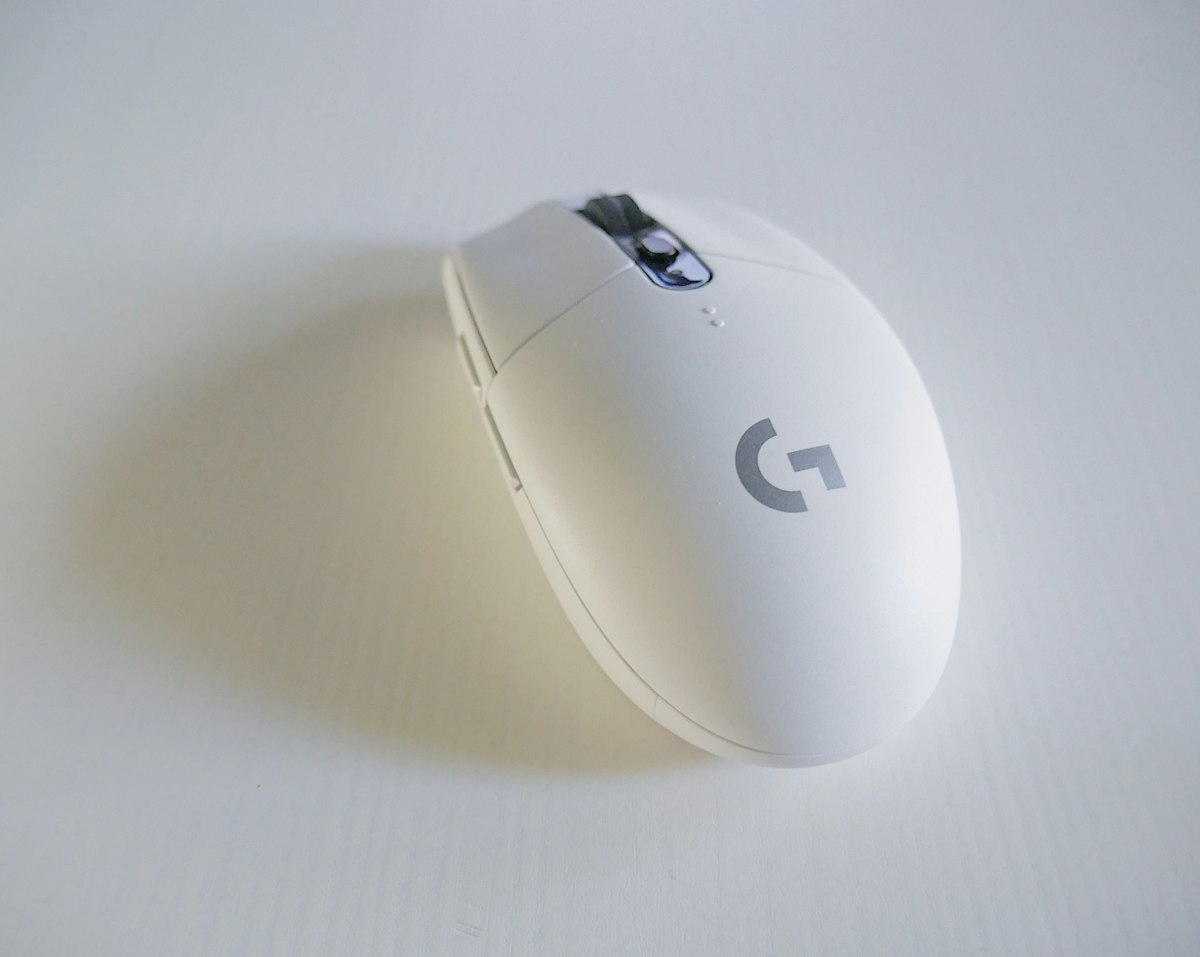
While you work through the deeper fixes, or if you're waiting on a repair, a wired or Bluetooth mouse is the simplest way to keep working without interruption. Most modern USB mice work instantly with no driver installation required, and a Bluetooth mouse avoids taking up a USB port if your laptop is short on them. This isn't a permanent solution, but it removes the time pressure to fix the touchpad immediately, letting you troubleshoot calmly rather than scrambling.
When to Take It to a Repair Shop
Consider professional repair if any of the following apply:
- The touchpad doesn't appear at all in Device Manager, even after a full driver reinstall and restart.
- The cursor doesn't move even while inside the BIOS/UEFI menu.
- The laptop was recently dropped, exposed to liquid, or had internal work done shortly before the issue started.
- You notice a physical click or rattle from the touchpad area that wasn't there before.
Touchpad ribbon cable replacements are generally an inexpensive, well-understood repair for most technicians, so this isn't usually an expensive fix even if it does turn out to be hardware-related.
Preventive Habits That Avoid Future Touchpad Issues
A few small habits reduce the chance of running into this problem again:
- Keep touchpad and chipset drivers updated through your manufacturer's official support app rather than letting them go untouched for years.
- Avoid eating or drinking directly over the keyboard area, since minor spills near the palm rest are a common slow cause of touchpad connector corrosion.
- Create a system restore point manually before major Windows feature updates, so you have an easy rollback option if a driver regression happens.
- If you primarily use an external mouse, periodically re-enable and test the built-in touchpad anyway, so you notice a failure early rather than months later when you actually need it.
- Avoid pressing down hard on the touchpad edges when carrying the laptop closed in a bag, since repeated pressure over time can gradually stress the ribbon cable connector at the point where it meets the motherboard.
- If your laptop is still under warranty and you notice any intermittent touchpad behavior, document it early and contact support sooner rather than later — intermittent issues are often easier to diagnose and cover under warranty before they become a full failure.
- Keep a small, dedicated USB or Bluetooth mouse in your bag if you travel often with your laptop, so a sudden touchpad issue during travel doesn't turn into a productivity emergency while you're away from your usual setup.
None of these habits take more than a few minutes to build into your routine, but together they meaningfully reduce how often you'll find yourself back on a troubleshooting guide like this one in the future. Most laptops go their entire useful life without a single hardware-related touchpad failure, and the software-related hiccups covered above are almost always a quick fix once you know where to look.
Frequently Asked Questions
Why did my laptop touchpad suddenly stop working?
The most common causes are an accidentally disabled touchpad shortcut, a corrupted or outdated driver, a recent Windows update that changed a setting, or a connected external mouse that automatically disabled the built-in touchpad. Hardware failure is possible but far less common than software causes.
How do I re-enable my touchpad using the keyboard?
Most laptops use a function key combination such as Fn + F5, Fn + F7, Fn + F9, or a dedicated touchpad icon key. The exact key varies by brand, so check for a small touchpad icon printed on one of your F-keys.
Does plugging in a mouse disable the touchpad automatically?
On many laptops, yes. There is often a setting under touchpad options that automatically disables the built-in touchpad when an external mouse is connected. This is intentional and can be turned off in settings if you want both to work at once.
Can a Windows update break the touchpad?
Yes. Windows updates occasionally replace a manufacturer-specific precision touchpad driver with a generic one, or reset touchpad settings to default, which can make gestures or the entire touchpad stop responding until the correct driver is reinstalled.
How do I know if my touchpad problem is hardware, not software?
If the touchpad does not appear at all in Device Manager, doesn't respond after a full driver reinstall, and shows no life even after a BIOS-level check, the issue is likely hardware, such as a loose ribbon cable or a physical fault, and usually needs professional repair.
Is it safe to use third-party touchpad driver tools?
It's safer to get drivers directly from your laptop manufacturer's official support page rather than generic third-party driver-updater tools, which can install mismatched or bundled unwanted software.
Final Thoughts
A touchpad that stops responding feels alarming in the moment, but it's one of the more predictable laptop problems to solve, and the fix is almost always sitting a few clicks away in settings or Device Manager rather than requiring a trip to a repair shop. Start with the keyboard shortcut, confirm the setting is switched on, refresh the driver, and work down the list methodically. By the time you've gone through the BIOS check and brand-specific tools, you'll have either restored full function or confirmed clearly enough that it's a hardware issue worth having looked at professionally. Either way, you'll know exactly what's wrong instead of guessing — and that clarity alone makes the whole process far less frustrating than where you started.