
Somewhere between "I want a website" and "I have a website," most beginners hit a wall of vocabulary. Hosting, domains, HTML, PHP, themes, plugins, staging sites, child themes — nobody hands you a glossary before throwing you into a WordPress dashboard. So you either freeze, or you start clicking buttons and hoping for the best.
This guide is the explanation I wish someone had given me before my first website — no jargon left unexplained, no step skipped because "it's obvious." By the end, you'll understand what actually happens when a browser loads a page, where WordPress fits into that picture, which parts you genuinely need to learn versus which parts a good theme handles for you, and how to avoid the mistakes that quietly sink most beginner projects.
Quick takeaways before you dive in:
- A website is just files (HTML, CSS, JavaScript) sitting on a server, delivered to a browser on request — WordPress is a system that generates those files for you automatically.
- You don't need to know how to code to run a WordPress site, but knowing the basics turns you from someone who's stuck when something breaks into someone who can fix it.
- HTML is structure, CSS is style, JavaScript is behavior — almost everything else in web development is a variation on that split.
- Most beginner websites fail on speed, mobile display, and security basics, not on design.
- You can realistically understand the core concepts in this guide in a single weekend of focused reading and practice.
What's covered in this guide
- What actually happens when someone visits a website
- HTML, CSS, and JavaScript, explained without the jargon
- Where WordPress fits into all of this
- WordPress vs. a hand-coded website: an honest comparison
- Core web development terms every beginner should know
- Setting up your first website, step by step
- Mistakes that quietly sink beginner websites
- Free tools worth learning on
- How long this actually takes to learn
- Frequently asked questions

What Actually Happens When Someone Visits a Website
Before touching WordPress, it helps to understand the plumbing underneath every website, WordPress or not. Think of it like ordering food at a restaurant you've never been to.
You (the browser) walk in and ask for a table by name — that's typing a domain like example.com into the address bar. A system called DNS acts like the restaurant's reservation book, translating that name into an actual address (an IP address) where the restaurant physically sits — the server. Your request travels to that server, which is really just a computer, always on, always listening for visitors.
The server then plays the role of the kitchen. It looks at what you asked for, prepares it, and sends it back. What it sends is a bundle of files: HTML for the structure of the page, CSS for how it looks, JavaScript for anything that moves or responds to clicks, plus images, fonts, and other assets. Your browser receives that bundle and renders it — turning plain text files into the visual page you see and interact with.
That's it. That's the entire model underneath every website on earth, from a single-page portfolio to Amazon's checkout flow. What changes between simple and complex sites is how the "kitchen" prepares the order — a static site serves the exact same pre-written files to everyone, while a dynamic site like WordPress assembles the page fresh, pulling content out of a database each time. Understanding that one distinction — static files versus dynamically generated pages — will make almost everything else in this guide click into place.
HTML, CSS, and JavaScript, Explained Without the Jargon
Every page on the web, no matter how it was built, ultimately boils down to three languages working together. Knowing what each one is responsible for is the single most useful piece of web development literacy you can own, because it lets you diagnose problems instead of guessing.
HTML: the skeleton
HTML (HyperText Markup Language) describes what a piece of content is — a heading, a paragraph, a list, an image, a link. It carries no opinion about color, spacing, or fonts. If you stripped every website down to plain HTML with no styling at all, you'd get something that looks like a 1996 web page: black text, blue links, no layout to speak of. That's HTML doing its actual job — structure and meaning, nothing more.
CSS: the wardrobe
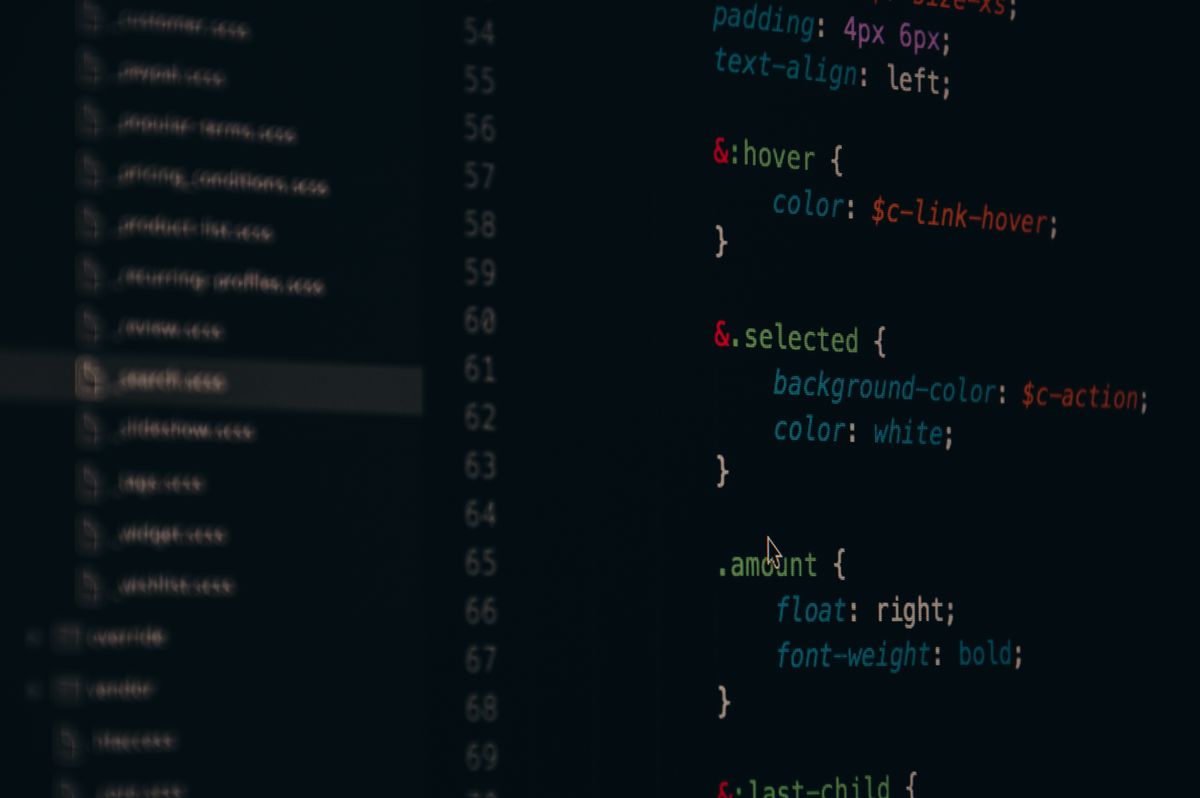
CSS (Cascading Style Sheets) takes that bare structure and dresses it. Fonts, colors, spacing, column layouts, hover effects, responsive behavior on mobile screens — all of it lives in CSS. When you install a WordPress theme, what you're really installing, in large part, is a giant pre-written CSS file (plus some HTML templates) that someone else designed so you don't have to write it from scratch.
JavaScript: the nervous system
JavaScript is what makes a page do something in response to a person — expand a menu when clicked, validate a form before it submits, load more posts without refreshing the page, animate an element as you scroll. A page with only HTML and CSS is a printed poster: attractive, informative, static. JavaScript is what turns it into something interactive.
Right-click any web page and choose "Inspect" or "View Page Source." You're looking directly at the HTML the server sent. Most browsers also have a "Styles" or "Elements" panel where you can see the CSS rules applied to whatever you click on. This single habit — peeking under the hood of sites you admire — teaches more practical web development than most tutorials do, because you're studying real, working code instead of toy examples.
Where WordPress Fits Into All of This
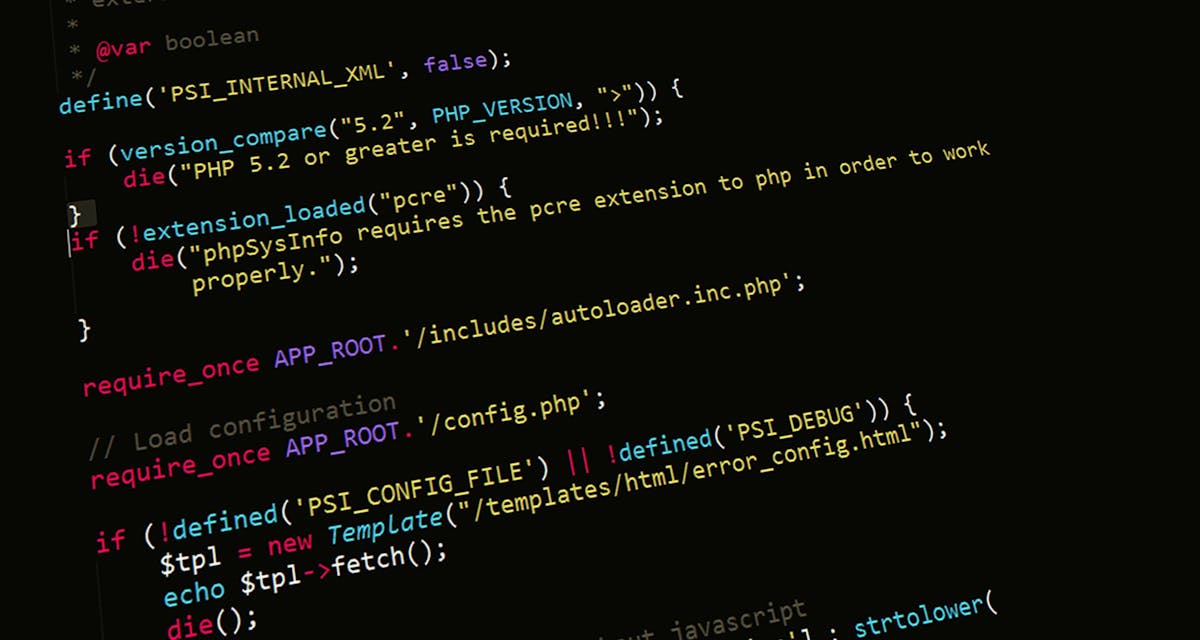
Here's the part that confuses most beginners: WordPress doesn't replace HTML, CSS, and JavaScript. It generates them for you. WordPress is written primarily in a server-side language called PHP, and it stores your actual content — posts, pages, settings, comments — in a database (almost always MySQL or its close cousin, MariaDB).
When someone visits a WordPress site, the server runs PHP code that pulls the relevant content out of the database, wraps it in the HTML structure defined by your theme, applies the CSS styling that theme includes, and sends the finished page to the visitor's browser. Every single time, freshly assembled. That's why WordPress is called a Content Management System (CMS) rather than "a website" — it's the machinery that builds websites out of content you feed it through a dashboard, without you needing to touch raw code for routine updates.
This is also why themes and plugins feel so powerful. A theme swaps out the HTML templates and CSS styling WordPress uses to display your content — change the theme, and the same posts suddenly look completely different. A plugin adds new functionality by hooking into WordPress's PHP code at specific points, which is how a single click can add a contact form, an SEO toolkit, or an online store to a site that had none of that a minute earlier.
Knowing this changes how you troubleshoot. A layout problem is almost always a CSS or theme issue. A "page not found" or broken-content issue often traces back to the database or a plugin conflict. A page that won't load at all is usually a server or PHP error. You don't need to fix these yourself every time, but knowing which category a problem falls into means you can describe it accurately to a host's support team or a developer — which alone saves hours of back-and-forth.
WordPress vs. a Hand-Coded Website: an Honest Comparison
Beginners often ask whether they should "just learn to code" instead of using WordPress. The honest answer is that it depends entirely on what you're building and how often you'll update it.
| Factor | WordPress | Hand-coded HTML/CSS site |
|---|---|---|
| Time to first launch | Hours to a couple of days, using an existing theme | Days to weeks, depending on design complexity |
| Ongoing content updates | Easy — edit posts and pages from a dashboard, no code required | Requires editing code files directly for every change |
| Design flexibility | High, bounded by what the theme and page builder allow | Unlimited — you control every pixel |
| Maintenance burden | Core, theme, and plugin updates need regular attention | Minimal — static files rarely "break" on their own |
| Best suited for | Blogs, business sites, portfolios, small stores, anything updated often | Single-purpose landing pages, learning projects, ultra-lightweight sites |
| Learning curve for the owner | Gentle for basic use, steeper for customization | Requires comfort with code from day one |
Most people who ask "WordPress or code it myself?" are actually asking two different questions at once: how do I get a site live quickly, and how do I learn web development properly? WordPress answers the first question well. It does not really answer the second — you can run a WordPress site for years without learning a line of HTML. If your goal is genuinely to learn web development, build a few small hand-coded pages first, then come back to WordPress once the vocabulary in this guide feels natural. You'll get far more out of WordPress's customization options that way.
Core Web Development Terms Every Beginner Should Know
Here's a working glossary of the terms that show up constantly once you start building — the ones that get thrown around in hosting dashboards, theme documentation, and plugin settings without explanation.
- Domain name
- The human-readable address of your site, like yourbusiness.com. You rent it annually from a registrar; you never fully "own" it outright.
- Web hosting
- The rented computer space where your site's files and database actually live. Without hosting, a domain name points to nothing.
- Server
- The physical or virtual machine that stores your site and responds to visitor requests around the clock.
- Database
- A structured storage system — think of it as a very organized spreadsheet — where WordPress keeps your posts, pages, comments, and settings.
- DNS (Domain Name System)
- The internet's address book, translating domain names into the numeric IP addresses that servers actually use to find each other.
- SSL/TLS certificate
- A small file that encrypts traffic between your site and visitors, shown in browsers as the padlock icon and the "https" prefix. Non-negotiable for both trust and search rankings.
- Responsive design
- A layout approach where a page automatically rearranges itself to look right on any screen size, from a phone to a widescreen monitor.
- CMS (Content Management System)
- Software like WordPress that lets non-coders create and manage website content through a dashboard instead of editing raw files.
- Theme
- A pre-built collection of templates and styling that controls how a WordPress site looks and lays out its content.
- Plugin
- An add-on that extends what WordPress can do — forms, SEO tools, galleries, e-commerce, and thousands of other functions.
- Staging site
- A private copy of your website used for testing changes safely before they go live on the real, public version.
- Cache / caching
- A technique that stores a ready-made copy of a page so it loads faster for the next visitor, instead of being rebuilt from scratch every time.
- Page speed
- How quickly a page becomes usable after someone clicks a link to it — one of the most important factors for both user experience and search visibility.
- API (Application Programming Interface)
- A defined way for two pieces of software to exchange data — how a WordPress plugin might pull live shipping rates from a courier's system, for example.
Setting Up Your First Website, Step by Step
With the vocabulary in place, here's the practical sequence for going from nothing to a live, working website.
Register a domain name
Pick something short, easy to say out loud, and free of hyphens or numbers where possible. Register it through a reputable registrar rather than an unfamiliar reseller, and keep the renewal on auto-pay so it never lapses unexpectedly.
Choose hosting that matches your traffic, not your ambitions
A brand-new blog doesn't need enterprise-grade hosting. Shared hosting is genuinely fine to start; you can upgrade later without losing content, as long as your host offers a straightforward migration path.
Install WordPress
Most hosts offer a one-click WordPress installer. Use it. Manually installing WordPress by uploading files and configuring a database by hand is a useful learning exercise eventually, but it's not where a beginner should spend their first afternoon.
Pick a lightweight, well-supported theme
Resist the urge to choose a theme based on how many features it advertises. A fast, simple, actively updated theme will serve you and your visitors better than a bloated one crammed with sliders and effects you'll never use.
Install only the plugins you actually need
A good starting set covers security, backups, an SEO helper, and caching. Every additional plugin is one more thing that can conflict with another, slow your site down, or become a security gap if left unmaintained.
Set up your core pages before your first post
A Home page, an About page, and a Contact page give both visitors and search engines a sense that the site is a real, finished destination — not an abandoned shell with one blog post in it.
Test on an actual phone before calling it done
Browser "mobile preview" tools are useful, but nothing replaces opening the live site on a real phone over a real mobile connection and clicking through it the way a visitor would.
Mistakes That Quietly Sink Beginner Websites
Design is rarely why a new website fails to gain traction. These are the quieter, more common culprits.
A backup plugin, or a backup feature from your host, takes minutes to set up and can save weeks of rebuilding after a bad plugin update or a hacking attempt. Set it up on day one, not after your first scare.
Each plugin is code written by someone else, running on your site. A pile of rarely used plugins is the single most common cause of slow, fragile WordPress sites — and of the confusing white-screen errors beginners panic over.
Search engines and visitors both penalize slow pages. Large uncompressed images are, by a wide margin, the most common cause of a sluggish WordPress site — and also the easiest to fix.
Pages that exist just to target a keyword, without genuinely useful information behind them, tend to sit invisible in search results — and can actively work against approval for advertising programs and trust-based ranking signals. Every page should answer a real question a real visitor would ask.
The majority of web traffic today arrives from phones. A site that looks polished on a desktop monitor but breaks or scrolls sideways on a phone loses the majority of its potential audience before they read a single word.
Free Tools Worth Learning On
You don't need to buy anything to start practicing the concepts in this guide.
- Browser developer tools — built into Chrome, Firefox, Edge, and Safari; free, and the fastest way to see real HTML and CSS in action.
- A free code playground — sites that let you write HTML, CSS, and JavaScript in your browser and see results instantly, with nothing to install.
- A local WordPress environment — free tools that run a complete WordPress install on your own computer, letting you experiment with themes and plugins with zero risk to a live site.
- Your hosting provider's staging feature — many hosts include this for free; it's the safest place to test theme or plugin changes before they touch your real visitors.
- Free image compression tools — shrinking images before uploading them is the single highest-leverage speed fix available to a beginner.
How Long This Actually Takes to Learn
There's no honest single number here, but a realistic breakdown helps set expectations.
| Goal | Realistic timeframe |
|---|---|
| Understand how the web and WordPress fit together (this guide's scope) | A focused afternoon to a weekend |
| Comfortably manage a WordPress site without fear of breaking it | 2 to 4 weeks of regular use |
| Read and lightly edit HTML/CSS to fix small theme issues | 1 to 2 months of casual practice |
| Build a simple site from scratch with HTML, CSS, and basic JavaScript | 3 to 6 months, a few hours a week |
| Work professionally as a WordPress or front-end developer | 6 months to 2 years, with consistent, project-based practice |
Frequently Asked Questions
Do I need to know how to code to use WordPress?
No. You can build and run a complete WordPress site using only themes, plugins, and the built-in block editor. Coding knowledge becomes useful once you want custom functionality a plugin doesn't already offer, or when you want to troubleshoot problems yourself instead of waiting on support.
Is WordPress considered "real" web development?
Yes, though it's one slice of the field. Building themes, custom plugins, or contributing to WordPress core involves genuine PHP, HTML, CSS, and JavaScript development. Using WordPress purely through its dashboard, without touching code, is closer to content management than development — both are legitimate, useful skills, just different ones.
What should I learn first: HTML, CSS, or WordPress?
If your goal is a working website quickly, start with WordPress directly. If your goal is to genuinely understand web development, spend a couple of weeks on basic HTML and CSS first — WordPress will make far more sense once you understand what it's actually generating behind the scenes.
Why does my WordPress site load slowly even with a simple design?
The most common causes, in order of likelihood, are uncompressed images, too many active plugins, a theme that loads more code than the page actually needs, and hosting that's underpowered for the site's traffic. Working through those four in order resolves the majority of speed complaints.
What's the difference between a theme and a plugin?
A theme controls how your site looks — layout, colors, typography. A plugin adds new functionality — a contact form, an SEO toolkit, a gallery. You can change themes without losing your plugins' functionality, and vice versa; they operate independently.
Can I switch from WordPress to a hand-coded site later, or the reverse?
Yes, in both directions, though it takes planning. Content can generally be exported and migrated. The bigger cost is usually design and functionality rebuilding, not content loss, so treat a platform switch as a proper small project rather than a quick weekend task.
Is it safe to use free WordPress themes and plugins?
Many are perfectly safe, particularly ones actively maintained and well-reviewed in the official WordPress directory. The risk rises sharply with themes or plugins downloaded from unofficial "nulled" sources outside that directory, which frequently carry hidden malicious code.
How much does it cost to get a basic website live?
A domain name typically runs a modest annual fee, and beginner-tier shared hosting is usually billed monthly at a low cost, often with introductory discounts. Beyond that, a huge range of themes and essential plugins are free, so a functional first site can be live for very little beyond the domain and hosting cost.
Web development can look intimidating from the outside because of how much vocabulary gets thrown around without explanation. Strip that vocabulary away, though, and the underlying ideas are genuinely simple: files travel from a server to a browser, three languages divide the work of structure, style, and behavior, and WordPress is a system that automates the tedious parts of producing those files. Once that framework is in your head, every tutorial, every error message, and every theme setting you encounter afterward has somewhere to slot in — instead of floating past as more unexplained jargon.